
The hard questions arrive later. The script needs an approval step. It fails quietly overnight and nobody notices for a week. Or the one person who understands it hands in their notice. This guide compares Apps Script and Zenphi for Google Workspace administration, including the cases where Apps Script is the better choice, and walks through what to do if your automations currently depend on a single person.
- Apps Script fits smaller companies, single-user automations, workflows with no approvals inside them, and zero-budget situations, as long as someone on the team will own the code for the long term.
- Zenphi fits IT teams where more than one person needs to build, read, change and audit an automation, especially admin workflows with approvals, self-service access requests, or security remediation.
- Many teams run both. Zenphi can run existing Apps Script inside a workflow through its Execute Script action, so adopting Zenphi does not require rewriting every script you have.
What’s in this guide
- What Apps Script does well
- Where Apps Script gets hard at team scale
- What to do when the script owner is leaving
- Alternatives to ad hoc scripts
- Zenphi vs Apps Script side by side
- How Zenphi handles Workspace administration
- Keeping and migrating existing scripts
- How Gordon Food Service uses both
- Which should you choose?
- FAQ
What Apps Script does well
Apps Script deserves its place in every Workspace admin’s toolkit. It is included with your Google Workspace subscription and runs on Google’s infrastructure, so there is nothing to host. It has native services for Gmail, Drive, Sheets, Docs and Calendar, advanced services for the Admin SDK Directory and Reports APIs, and it can call any other Google or third-party API over HTTP. Time-driven and event-based triggers let a script run on a schedule or when a form is submitted.
For a stable piece of logic that one person understands and will keep maintaining, such as a nightly report, a custom Sheets function, or a small cleanup job, Apps Script is hard to argue with. The difficulties below show up when the stakes, the number of maintainers, or the number of people affected goes up.
Where Apps Script gets hard at team scale
In conversations with IT teams, we hear the same set of problems again and again. Almost all of them appear after the script already works: once more people, more users and more risk are involved.
Ownership sits with one person
Installable triggers run under the account of the person who created them, and other editors of the project cannot manage them. Scripts stored in My Drive belong to that person too. When they leave, the script file can be transferred like any other Drive file, but the triggers do not move with it: the new owner has to recreate each one. If the original account is suspended or deleted before that happens, scheduled runs stop.
The mechanics are the smaller part of the risk. The logic itself, including every edge case the author handled and every workaround they added, usually lives in their head and in whatever comments they left behind. Teams describe this as “whoever owns the script can’t leave.”
Failures are easy to miss
By default, Apps Script emails failure notifications to the trigger owner, either immediately, daily or weekly. If that person is on holiday or has left, nobody sees them. Execution logs are available, but alerts to a team channel, retries, and clean handling of partial failures all have to be written by hand. A partially failed offboarding run is the worst case: Drive ownership transferred, group memberships never removed, and no record that anything is incomplete. In many teams, the first sign of a broken script is a user complaint.
Admin tasks put powerful credentials into code
Directory API calls run with the permissions of whoever runs the script. Admin automations therefore tend to run as a super admin account, or through a service account with domain-wide delegation, which brings a Google Cloud project, key management and an OAuth library into the setup. Either way, broad admin access ends up inside code that very few people review.
Approvals have to be built from scratch
Apps Script has no approval step. Teams assemble one from a Google Form, a web app or an email with links, then write the logic that waits for a decision, handles rejections, reminds slow approvers and records who approved what. For access requests, that approval scaffolding is often more code than the admin action it protects.
Runtime limits and quotas
A single Apps Script execution can run for six minutes, and daily quotas apply to trigger runtime, emails sent and API calls. Domain-wide audits and bulk changes need batching and continuation logic to stay inside those limits. Google publishes the current figures in its Apps Script quotas documentation.
There is no one to call
Google Workspace support covers the product. Custom code generally falls outside what support will debug, so when a script breaks, help comes from community forums or from the person who wrote it.
If the person who owns your Apps Script is leaving
A common version of this problem: offboarding, provisioning or access changes run on Apps Script, and the IT person who built them is leaving. These steps reduce the immediate risk. Work through them before their last day.
- Inventory every project and trigger. Ask the owner to list each project in the Apps Script dashboard, what it does, what triggers it, how often it runs and which account it runs as. Cross-check against Drive audit logs so nothing stored outside the dashboard is missed.
- Move the code off the personal account. Transfer script files to a shared drive or to a dedicated automation account the team controls. Ownership transfer works the same way as for any other Drive file; our guide to Google Drive and shared drive permissions covers the transfer options and the permission audit that should come with it.
- Recreate triggers under a team-owned account. Triggers do not transfer with the file. Recreate each one from the new owner account and confirm the next scheduled run succeeds.
- Send failure notifications to a group. Configure notifications on the new owner account and route them to a shared alias or Google Group, so a failure reaches more than one inbox.
- Document each script in plain language. Record inputs, outputs, credentials used, known edge cases and what to do when it fails.
- Decide which scripts stay in code. Lightweight, stable, low-risk scripts can stay. Anything that touches accounts, access or data, such as employee offboarding and data archiving, provisioning or permission changes, is worth moving to something the whole team can read and maintain.
These steps buy time. The underlying pattern, a single maintainer holding critical automation, returns with the next person who writes a script, unless the automation itself becomes legible to the rest of the team.
Your options, compared
There are five realistic paths for teams that have outgrown ad hoc scripts. Each suits a different kind of team.
Harden your Apps Script setup
Keep the code, and fix what surrounds it: store projects in a shared drive, run triggers from a dedicated automation account, put the code in Git with clasp so changes are reviewed, send logs to Cloud Logging with alerts, and train a second maintainer.
GAM
GAM is an open-source command-line tool for Google Workspace administration, widely used for bulk changes and reporting across users, groups, Drive and shared drives.
Workspace management platforms such as BetterCloud and CloudM
These platforms package common lifecycle tasks, such as onboarding, offboarding and policy enforcement, into prebuilt templates with a management console. CloudM also covers migration and archiving.
General-purpose integration platforms such as Zapier and Make
These tools connect thousands of apps and suit cross-application business automation, such as moving data between a CRM, a spreadsheet and a chat tool.
Workspace-native workflow automation such as Zenphi
Zenphi is a no-code workflow automation platform built natively for Google Workspace. Workflows are built visually from first-class Google Admin actions, with approval steps, AI agent steps and Apps Script execution available in the same flow. The Apps Script alternative overview summarizes the product side.
Zenphi vs Apps Script side by side
| Area | Apps Script | Zenphi |
|---|---|---|
| How you build | JavaScript in the Apps Script editor | Visual flow builder; ZAIA builds flows from a prompt; Execute Script for code where needed |
| Who can maintain it | People who can read and safely change the author’s code | Anyone on the IT team with access to the flow |
| Google Admin coverage | Full API access through advanced services and HTTP calls, written by hand | Over 150 first-class Google Admin actions, from user provisioning to data transfer |
| Admin event triggers | Admin events require polling the Reports API or setting up push notification channels in code | Google Audit Activity, Google Directory and Google Group triggers |
| Admin permissions | Script runs as its owner, or through a service account with domain-wide delegation | Each action connects to an account; admin-level accounts only for actions that need admin rights |
| When something fails | Email to the trigger owner; team alerts and retries coded by hand | Failure notification, run history with logs, error-handling settings on each action |
| Approvals | Custom build with Forms, a web app or email | Approval steps added into the flow wherever the process needs them |
| Access and change control | Editor access to the script file; versioning through deployments or Git | Role-based access, version control and audit trails |
| AI | Call AI APIs with your own keys, prompts and response parsing | AI agent step from Gemini, OpenAI or Claude, with admin-level locking of system instructions and model choice |
| Documents | Document generation coded against the Docs API | Built-in document generation from a Google Docs template; document understanding through an AI step |
| Support | Community forums and the original author | Live support from the Zenphi team, with real people and no chatbots |
| Cost | Included with Workspace; the cost is developer time to build and maintain | Subscription with no per-run and no per-user fees |
| Existing scripts | Stay where they are | Run as they are with Execute Script, or convert to native actions with ZAIA |
How Zenphi handles Google Workspace administration
First-class Google Admin actions
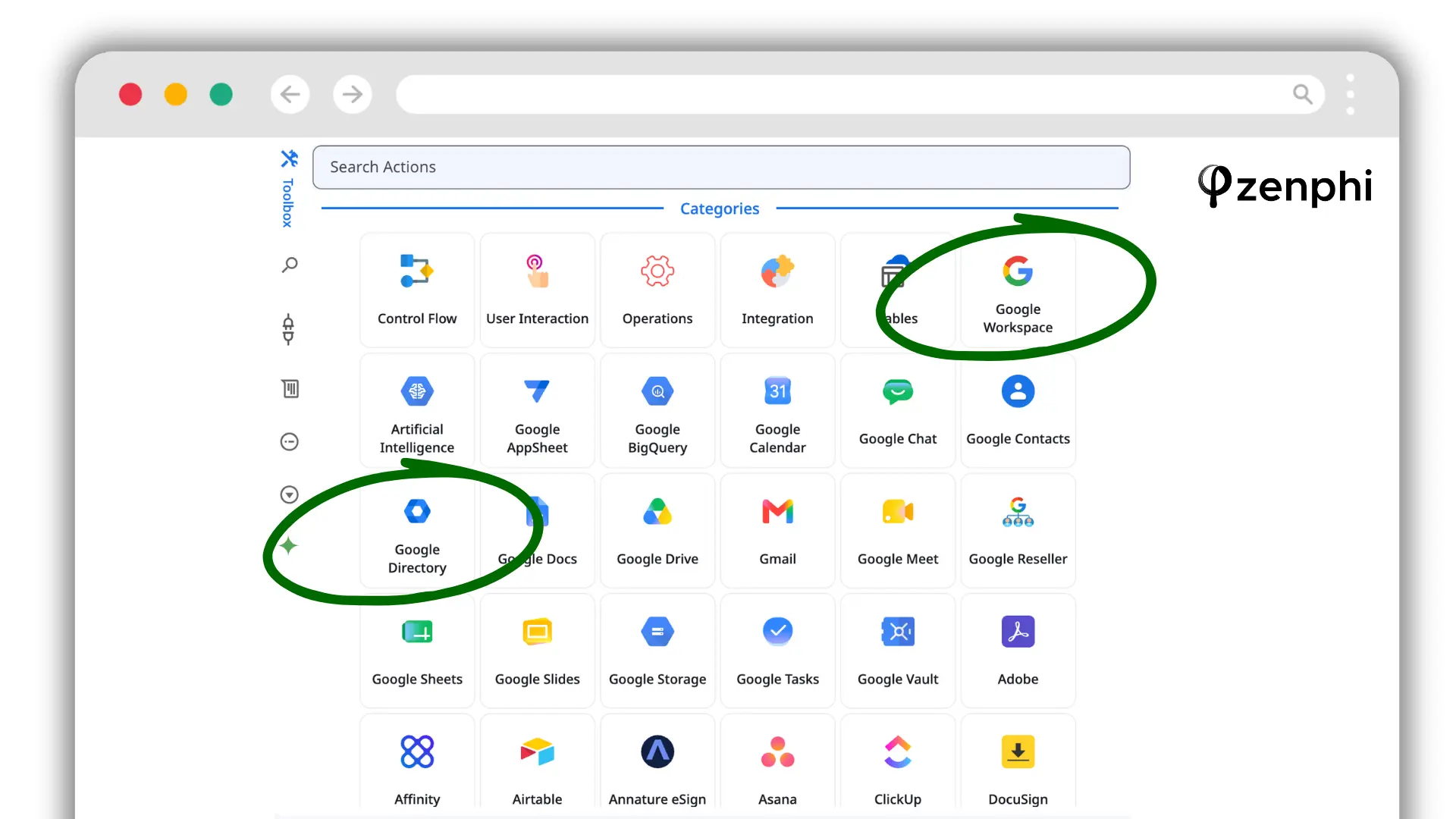
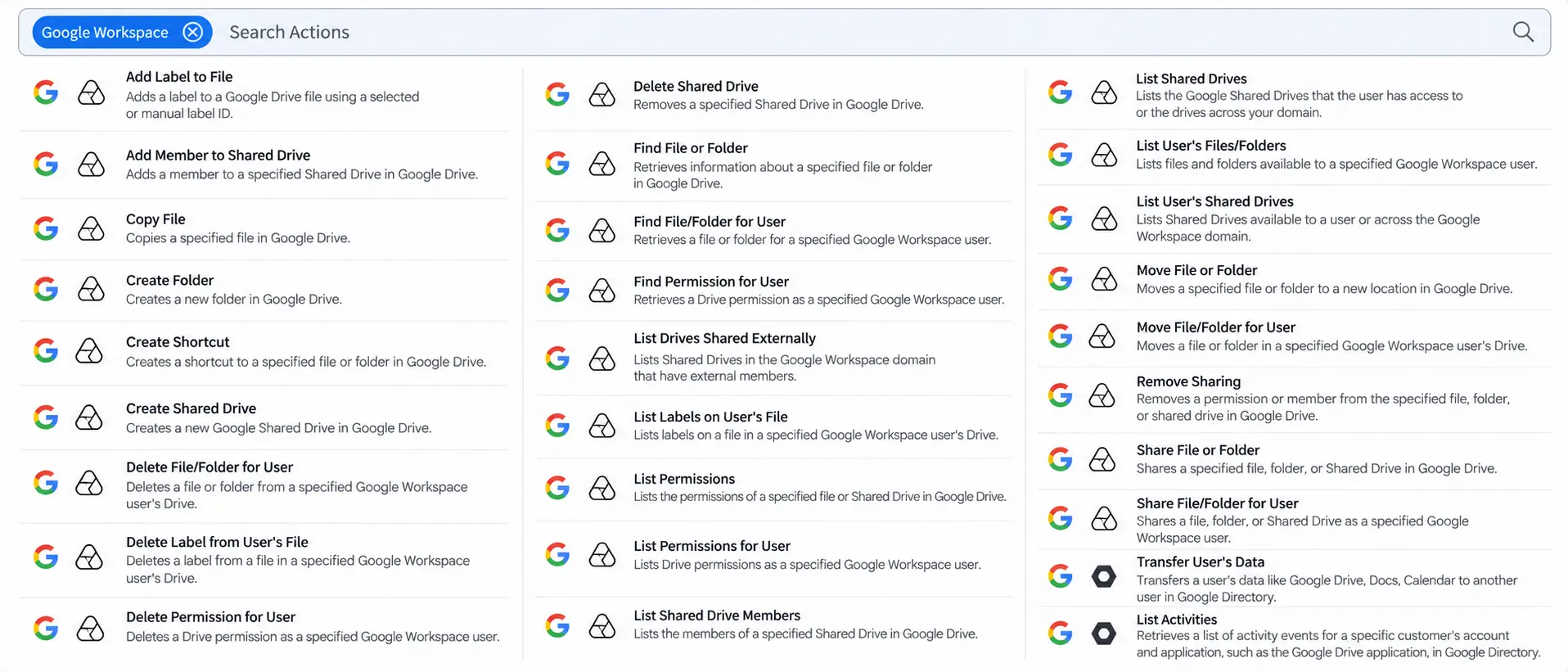
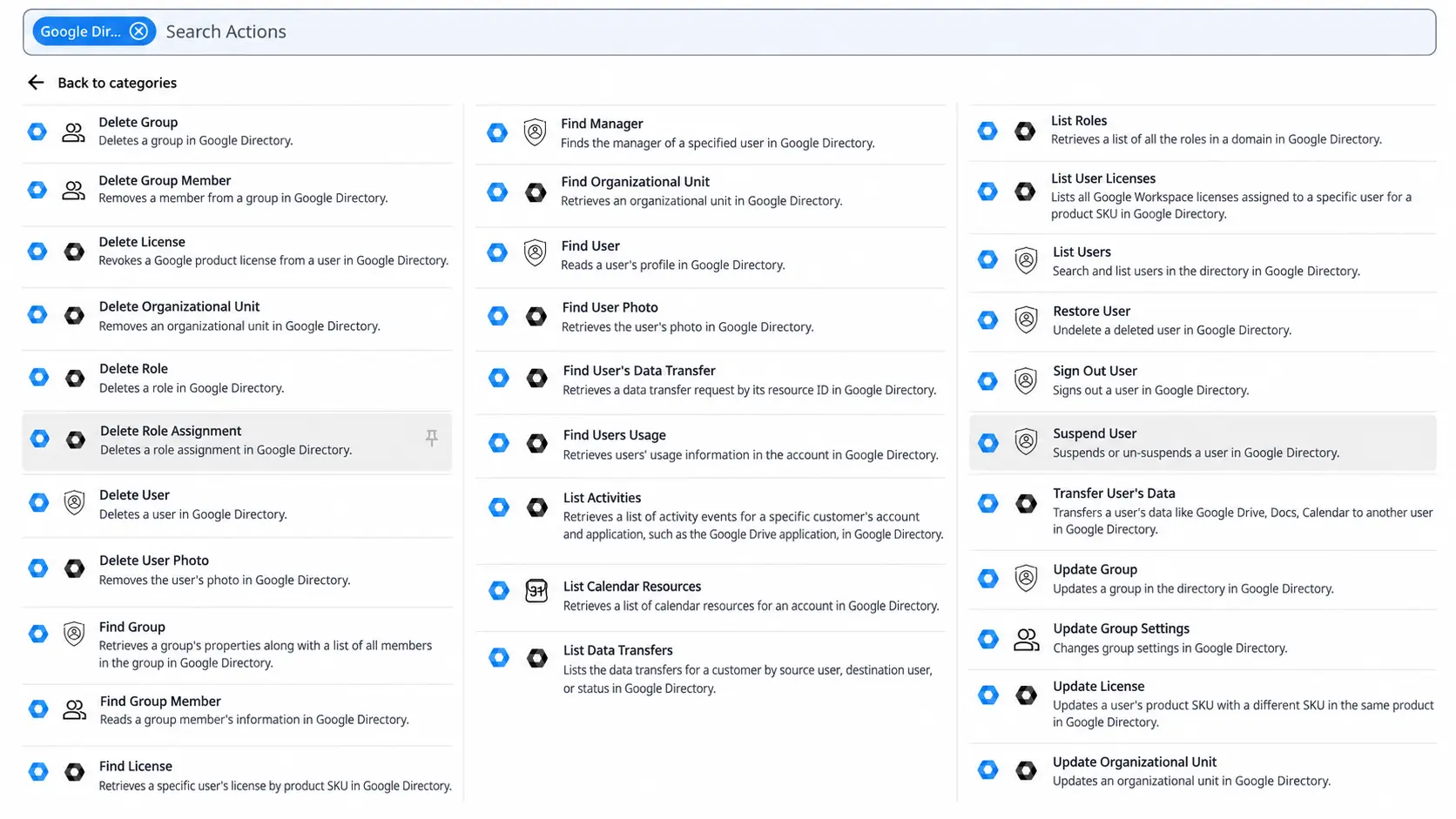
Zenphi ships over 150 Google Admin actions as ready-made building blocks: listing, creating, suspending and deleting users, updating passwords, managing groups and memberships, transferring user data, and more. Each action has named fields in place of API parameters, so a teammate can open a flow and see what it does without reading code.
Admin actions sit in the Google Workspace and Google Directory categories of the action toolbox. You can also type the action name, such as List Users, Delete User or Update Password, into the search bar.
Triggers that start from admin events
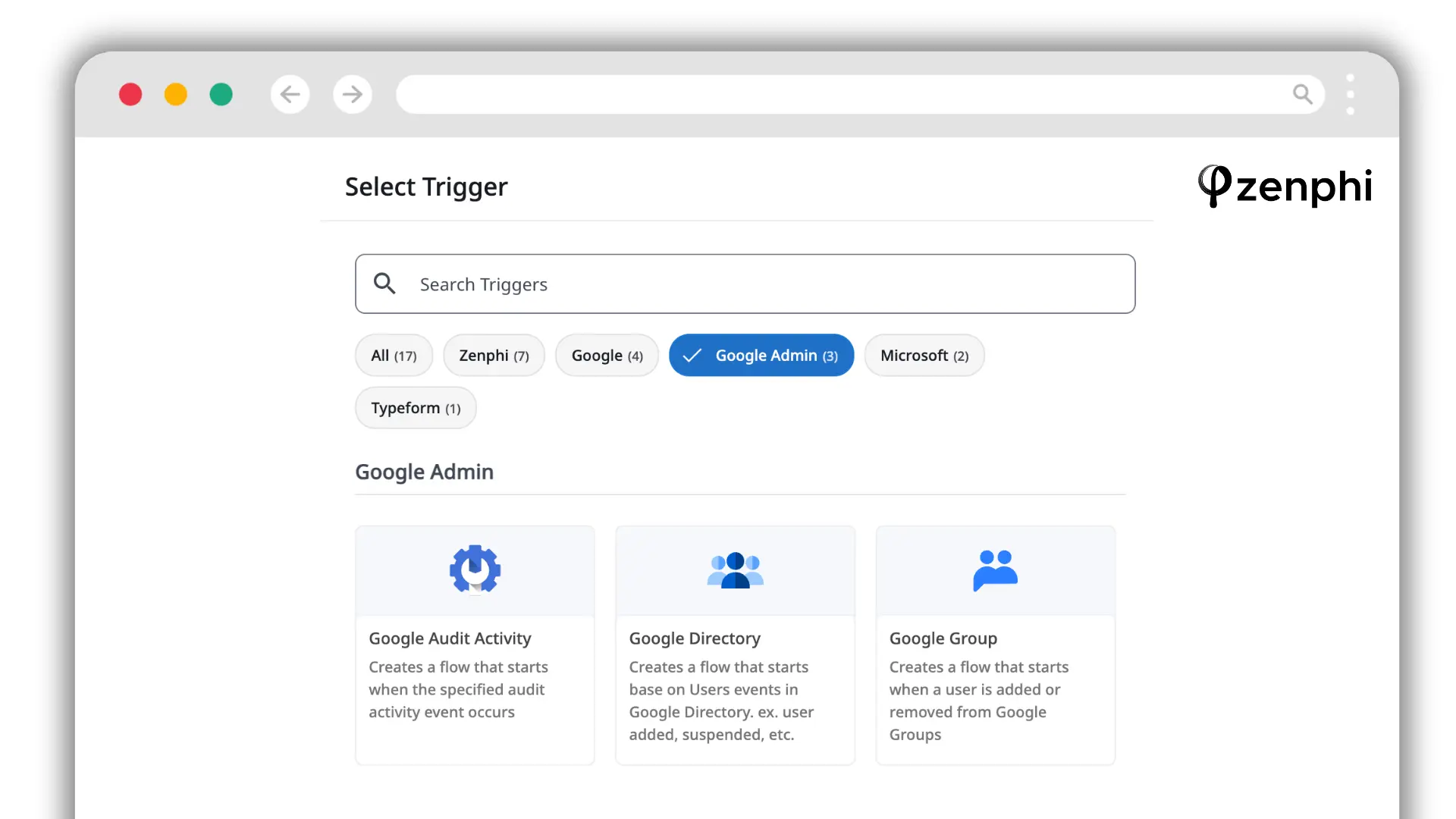
Three Google Admin triggers start a flow directly from events in your domain, with no polling code:
- Google Audit Activity starts a flow when a specified audit event occurs.
- Google Directory starts a flow on user events, such as a user being added or suspended.
- Google Group starts a flow when a user is added to or removed from a group.
A suspension in the Directory can start the full offboarding sequence, and a change to a sensitive group can start a review with the group owner.
Admin rights only where they are needed
Zenphi itself does not hold admin access to your domain. Each action is connected to an account, and the action runs as that account. Actions that genuinely require admin rights, such as account provisioning, password changes and data transfers, are connected to an account with the right admin privileges and perform the task as that admin. Actions that do not need admin rights, such as sending an email or updating a sheet, can be connected to any other account. The result is a flow where anyone reviewing it can see exactly which steps use elevated access.
Approvals and self-service requests
Approval steps are added into a flow wherever a process needs one: a manager approving a group request, a data owner approving access to a shared drive, a security reviewer approving an OAuth app. Once approved, the next steps apply the change in Google Workspace and confirm completion to the requester. This pattern is the basis of IT access request automation, where employees request access through a form and the workflow does the work that previously waited in an admin’s queue.
Knowing when something goes wrong
Every run is recorded in the run history with logs, and when a flow fails, you are notified. Actions include their own error-handling settings, so a failed step can retry, branch or alert the team. When you need help, Zenphi’s support team is made up of real people who answer directly, and the Zenphi Users community is there for peer advice.
AI steps with admin guardrails
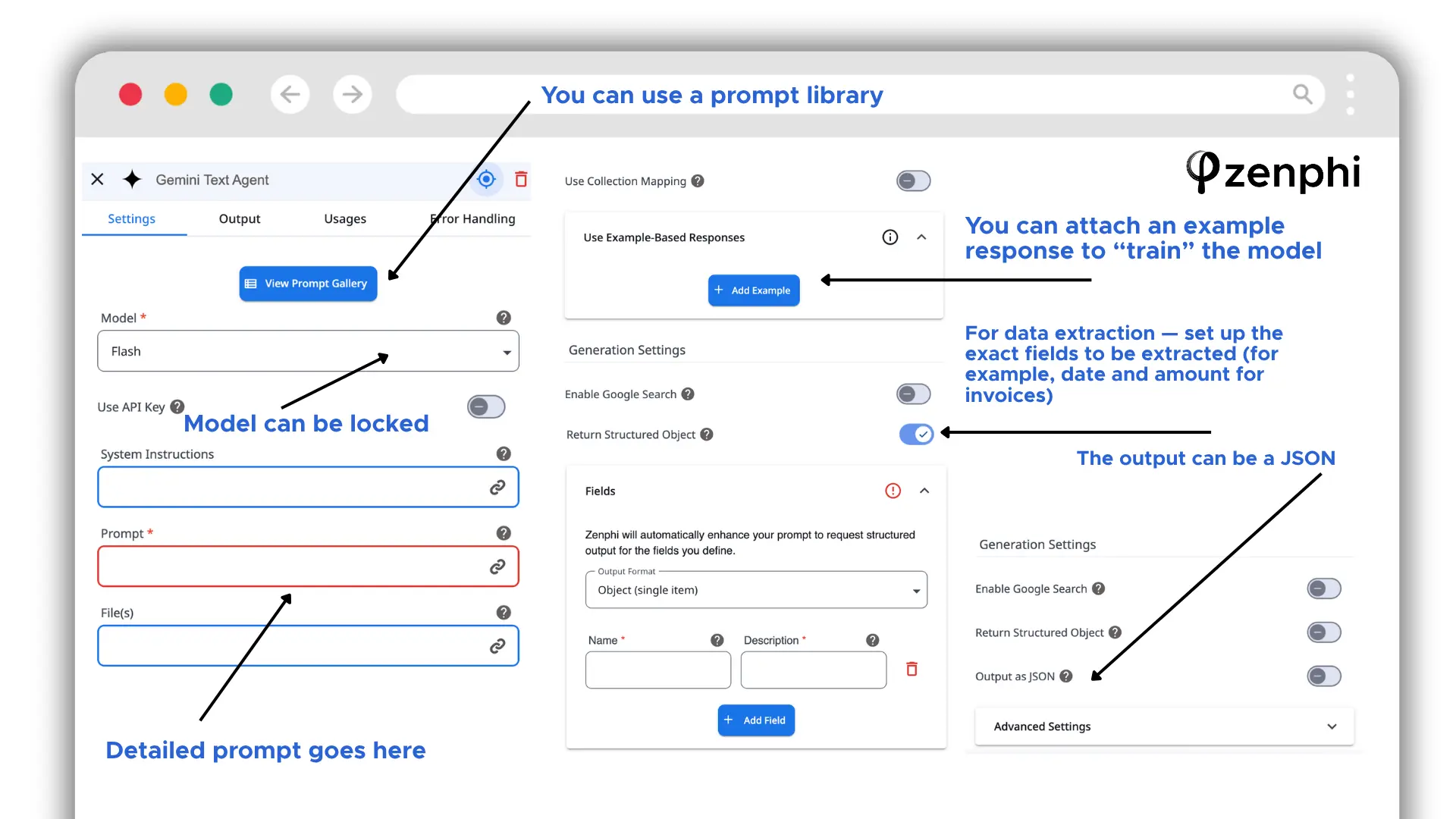
An AI agent step can be added anywhere in a flow, using Gemini, OpenAI or Claude. You set it up like any other action, with a prompt and system instructions. Administrators can lock the system instructions and the model choice, so that routine tasks do not run on high-effort models and every team uses the same approved configuration.
Typical uses in admin workflows include classifying incoming access requests, summarizing audit findings for a reviewer, and extracting details from uploaded documents. Document understanding runs through an AI step, while document generation from a Google Docs template is built in.
Keeping your Apps Script: running code inside Zenphi
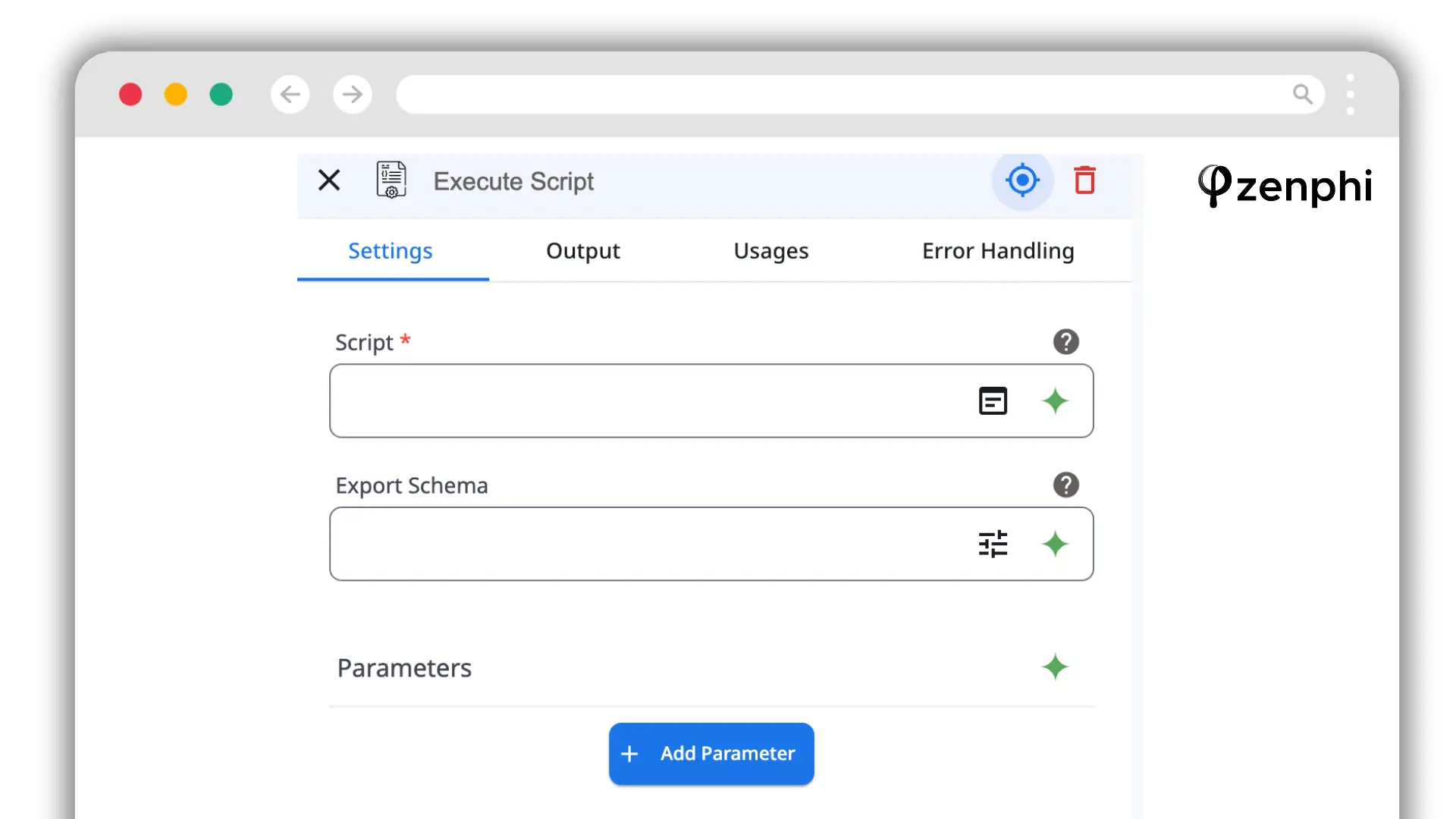
Moving to Zenphi does not mean throwing away working code. The Execute Script action runs Apps Script as a step inside a Zenphi workflow. You add the script, pass in parameters from earlier steps, define an export schema for the output, and use that output in later steps. The action has its own error-handling tab, so a script failure is handled and surfaced like any other step.
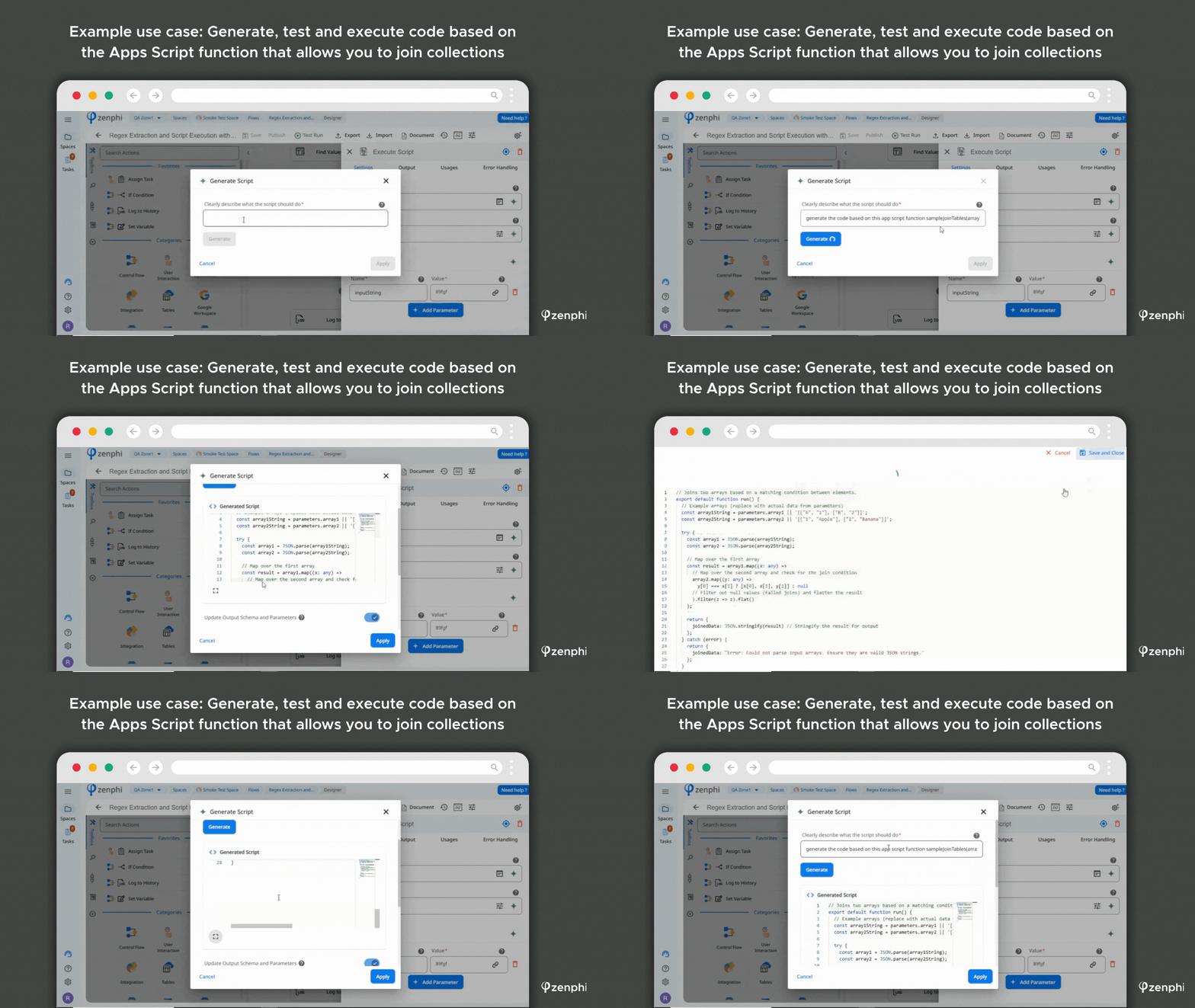
If a step needs custom logic and no script exists yet, ZAIA, Zenphi’s AI automation assistant, can write valid Apps Script from a plain-language description, ready to run in the Execute Script action.
Migrating scripts with ZAIA
For scripts you want to retire, paste the Apps Script into ZAIA and it generates a workflow built from native Zenphi actions. You review the flow, test it against real data, and switch the trigger over when you are satisfied. Many workflows can be drafted this way in about 30 minutes. During a proof-of-value, the Zenphi team can also build the first workflow with you at no charge. Once live, the workflow runs on its own.
How Gordon Food Service uses both
Gordon Food Service, a food distributor with more than 20,000 employees, faced a steady stream of Google Workspace requests that arrived after accounts already existed: new Google Groups with the right permissions, email aliases, mailbox delegation, access to shared drives. Alongside them sat security work that also needed a person, such as reviewing Chrome extensions, checking out-of-domain forwarding and auditing calendar sharing.
The IT team had the skills to write scripts and decided not to use them for this work. Scripting expertise sat with one or two people, and anything built in Apps Script would have been maintainable only by those same people.
“There were many processes we chose not to automate with Apps Script due to the complexity. Zenphi changed that.”
The team published Zenphi workflows through the Employee Center, the internal helpdesk portal employees already used. Employees now request Google Groups, mailboxes and aliases, Gmail and Calendar delegation, and licence upgrades through forms, and each request runs through validation, approval and an audit trail before the change is applied. On the security side, Chrome extension and OAuth access requests are checked against an approved-apps database, out-of-domain forwarding and public calendar sharing are detected automatically, and unauthorized connected apps are flagged and remediated as they appear.
“We estimated these flows reduced our team’s ticket requests by 83% in 2024.”
Gordon Food Service also reports an 85% reduction in admin time spent on Google Admin tasks. Apps Script is still in use there for lightweight tasks. Everything that more than one person needs to open, understand, change and later prove runs on Zenphi.
Which should you choose?
- You are a smaller team with a handful of automations
- Workflows run for a single user and need no approvals
- There is no automation budget
- The logic is stable and someone will own it long term
- Several people need to build, read and change automations
- Processes need approvals or employee self-service
- Automations touch accounts, access or security
- You need audit trails and to know when a flow fails
- A script owner is leaving, or already has
- You have working scripts worth keeping
- Some steps need custom code inside a governed flow
- You want to migrate gradually, starting with the riskiest processes
Frequently asked questions
What are the alternatives to Google Apps Script for Google Workspace admins?
There are five realistic paths: hardening your existing Apps Script setup (shared ownership, version control, alerting), GAM for command-line bulk administration, Workspace management platforms such as BetterCloud and CloudM for packaged lifecycle templates, general-purpose integration platforms such as Zapier and Make for cross-app business automation, and Workspace-native workflow automation such as Zenphi for admin workflows with approvals, audit trails and first-class Google Admin actions that the whole IT team can maintain.
What happens to Apps Script triggers when the script owner leaves the company?
Installable triggers run under the account of the person who created them. Transferring the script file to someone else does not move the triggers, so the new owner has to recreate each one. If the original account is suspended or deleted first, scheduled runs stop, and failure notifications keep going to the old owner’s inbox until someone changes the setup.
Can I keep my existing Apps Script code if I move to Zenphi?
Yes. Zenphi’s Execute Script action runs Apps Script inside a Zenphi workflow, with parameters passed in and the output available to later steps. Teams often keep lightweight scripts as they are and move the parts that need approvals, audit trails or team-wide maintenance into Zenphi actions.
How do I migrate an Apps Script automation to Zenphi?
Paste the script into ZAIA, Zenphi’s AI assistant, and it generates a workflow built from native Zenphi actions. You review it, test it against real data and switch the trigger over. During a proof-of-value, the Zenphi team can also build the first workflow with you at no charge.
Does Zenphi need super admin access to my Google Workspace?
Admin rights are connected to individual actions, and Zenphi itself holds no admin access to your domain. Actions that require them, such as account provisioning, password changes and data transfers, are connected to an account with the right admin privileges and perform the task as that admin. Actions that do not need admin rights, such as sending an email, can be connected to any other account.
Is Apps Script free, and how is Zenphi priced?
Apps Script is included with Google Workspace; the real cost is the developer time to build, debug and maintain scripts. Zenphi is a subscription with no per-run and no per-user fees, and you can start for free.
How do I find out when a Google Workspace automation fails?
In Apps Script, failure notifications are emailed to the trigger owner by default; team alerts, retries and handling of partial failures have to be written in code. In Zenphi, every run is recorded in the run history with logs, you are notified when a flow fails, and actions include their own error-handling settings.
Can Zenphi use AI inside Google Workspace workflows?
Yes. You can add an AI agent step from Gemini, OpenAI or Claude and configure it like any other action, with a prompt and system instructions. Administrators can lock the system instructions and the model choice so that simple tasks do not run on high-effort models.
Try it on one of your own scripts
Pick the script you would least like to debug after its author leaves. Paste it into ZAIA, see the workflow it generates, and decide from there. Zenphi has no per-run or per-user fees, and you can start for free.

Ruzida Badrutdinova is a technology writer specialising in workflow automation, Google Workspace productivity and no-code solutions. At Zenphi, she covers practical how-to guides, product updates and automation use cases across IT, finance, marketing and security.
Her writing is aimed at IT administrators, business operators and Google Workspace users who want to get more done without writing a single line of code.
View author page