Everything you need to know about Google Drive permissions — how the model actually works, how to change and audit access by hand, how to script the repetitive parts, and how to automate the whole thing.
On this page
- Short answer
- How Google Drive permissions actually work
- How do I remove or change access for specific users on Google Drive?
- What are the best practices for managing permissions on shared drives?
- How can I effectively manage sharing permissions on Google Drive?
- Automating Drive permissions with Google Apps Script
- Can I automatically share documents to Google admin using shared drives?
- Automating Drive permissions without writing Apps Script
- FAQ
- Where to start
Google Drive runs two permission models side by side. My Drive files are owned by an individual, who controls sharing and takes the content with them when they leave. Shared drive files are owned by the organisation, with membership set at the drive level and inherited by everything inside. The trap is that inheritance flows down but direct file shares sit on top of it, so removing someone from a shared drive does not remove access to files that were shared with them individually. Manage this through the Admin console for policy, GAM or the Drive API for bulk changes, Apps Script for stable recurring logic, and a workflow automation platform when the process needs approvals, an audit trail and something that outlives the person who built it.
Permissions are where managing Google Drive can become tricky, and exactly where security breaches can become your worst nightmare. Because — let's be honest — security breaches happen when someone shares something with someone else and then forgets to remove the sharing. Or shares a file that is stored in a shared drive that also contains sensitive commercial or customer-related information. And we all know that when push comes to shove, it's the IT people, admins and security who are to blame — no matter who actually shared that file, and when. Even if it happened two years before you joined the team, it will be your head on the line anyway.
This guide covers everything you ever needed to know about Google Drive permissions: how they actually work, how to change and audit access by hand, how to script the repetitive parts if you're up for some scripting, and how to automate permission management so you never have to explain why a file shared with a third-party vendor three years ago is still open today. Buckle up.
How Google Drive permissions actually work
Before changing anything, it helps to be precise about what you are changing. I'm sure you already know this, but just to cover the basics — Drive has two permission models. And from my experience, most access problems come from treating them as one.
Google Workspace has My Drive files. They are owned by an individual user, and that user also controls sharing. They can create files, delete files and share files from My Drive. When they leave the organisation, best practice for security and data handling dictates that ownership of these files has to be transferred to someone — let's say, the user's manager — or the content is stranded. Roles here are Owner, Editor, Commenter and Viewer, and they can be granted to individual people, groups, your whole domain, or anyone with the link.
Google Workspace also has shared drive files. Those are owned by the organisation. Membership is set at the drive level and inherited by everything inside it. Roles for shared drive files are more elaborate and include Manager, Content manager, Contributor, Commenter and Viewer. The problem arises because, by default, Google allows individual files inside a shared drive to be shared directly with people who are not members of the drive.
- Inheritance flows down, but direct shares overpower it. A person can have access to a file either because they are a member of its shared drive, or because someone shared that specific file with them. Removing drive membership does not remove a direct file share.
- Link sharing is a permission. When a user shares a file using the "Anyone with the link" option, it is stored as a permission object with type
anyone. For you, that means you can search for this object type during an audit and revoke the sharing if needed. - Group permissions are the easiest ones to handle. A permission granted to an individual email stays there until it is actively removed, and drive membership removal doesn't solve that. So if someone is let go, they keep access to every file shared with them directly, even though they are no longer part of the drive. Imagine what they can do with that information if they're unhappy about the decision. On the other hand, if they got access as part of a Google Group, they lose it the moment their group membership is cancelled.
These are the basics every Google Workspace admin or IT security specialist should be aware of, and they have been around forever. Yet according to the Beyond Identity survey from 2023, 91% of employees said they still had access to company files after leaving. Look at what companies actually do during offboarding and the reason is not hard to find: revoking access to cloud services and email sits at the very bottom of the list, below paperwork and below reminding people not to steal data.
Now imagine carrying that attitude into 2026, when access is granted not just to colleagues but to AI agents. How long will it take for all hell to break loose? That's a rhetorical question. Instead of answering it, let's focus on what you can do to avoid the disaster.
How do I remove or change access for specific users on Google Drive?
There are three ways to do this, and the right one depends on whether you are handling one file, one person, or one policy.
In the Drive interface (single file or folder)
Open the file, click Share, then use the role dropdown next to the person's name to switch them between Editor, Commenter and Viewer — or choose Remove access. For a shared drive, open the drive, click the drive name at the top, then Manage members to change or remove a member's role.
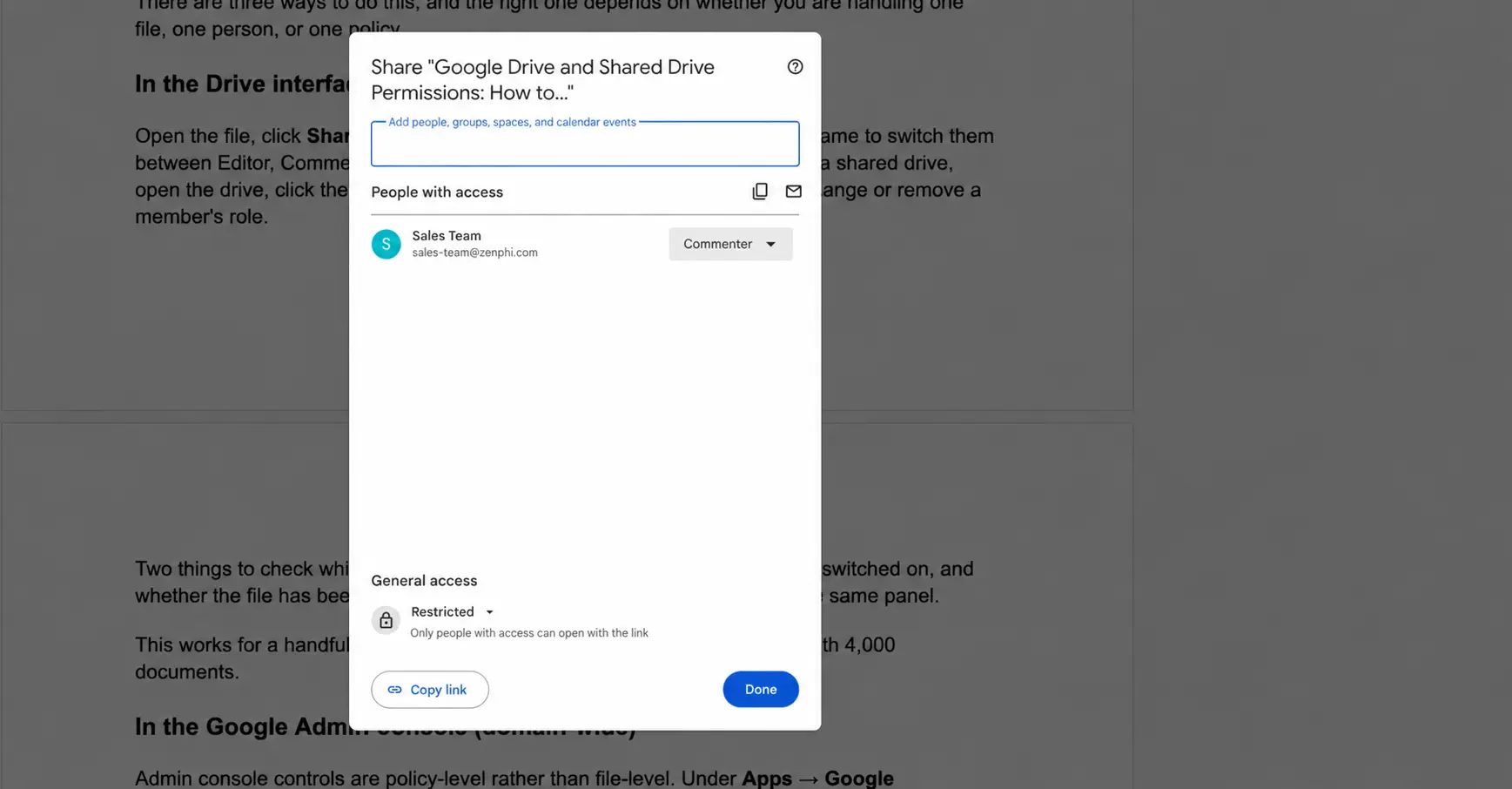
Two things to check while you are in there: whether "Anyone with the link" is switched on, and whether the file has been shared outside your domain. Both are visible in the same panel.
This works for a handful of files. It does not scale to a departing employee with 4,000 documents.
In the Google Admin console (domain-wide)
Admin console controls are policy-level rather than file-level. Under Apps → Google Workspace → Drive and Docs → Sharing settings, you control whether external sharing is permitted at all, whether warnings appear, whether link sharing defaults to restricted, and whether users can publish to the web. Setting sharing defaults to Restricted at the organisational-unit level prevents new over-sharing even before you clean up the old.
Under Apps → Drive and Docs → Manage shared drives, you get a list of every shared drive in the domain with filters for drives that have external members, drives with no members, and drives that have not been active. This is the fastest manual way to find orphaned shared drives.
For investigating actual access events, Reporting → Audit and investigation → Drive log events shows who viewed, downloaded, shared or changed permissions on what, with filters for external recipients and visibility changes. On Enterprise and Education editions, the security investigation tool can act on results — you can select files from a search and remove sharing in bulk.
When a user is offboarded, the Admin console also handles ownership. Deleting a user prompts you to transfer their Drive files to another account, and Apps → Drive and Docs → Transfer ownership does the same thing without deleting the account.
What the Admin console does not give you is per-file permission editing across the domain. For that, admins typically move to a command-line tool.
With GAM (bulk changes across the domain)
GAM is an open-source command-line tool for Google Workspace administration. It is widely used for exactly this problem because it exposes Drive permission operations in bulk. A few representative commands:
# List every file a user can see, with its full permission set
gam user [email protected] show filelist fields id,name,permissions

# Export permissions for all users to CSV for auditing
gam all users print filelist fields id,name,permission > drive-permissions.csv

# Remove one person's access to a specific file
gam user [email protected] delete drivefileacl <fileId> user [email protected]

# Grant access
gam user [email protected] add drivefileacl <fileId> user [email protected] role writer

# List shared drives and their ACLs
gam print shareddrives
gam print shareddriveacls

# Add a governance group as Manager on a shared drive
gam shareddrive <driveId> add organizer group [email protected]
GAM syntax varies between versions and between GAM7 and GAMADV-XTD3, so verify commands against your installed version before running anything destructive. Test on a single account first — bulk permission changes are not undoable.
The trade-off with GAM is operational rather than technical. It works, and it works well, but it lives on somebody's laptop, it runs when that person remembers to run it, and the knowledge of what to run leaves when they do.
What are the best practices for managing permissions on shared drives?
Remember the three facts I asked you to memorise before we got into technical details? Time to surface them — because the best practices derive from the basic truths about shared drives.
- Grant access to Google Groups, never to individuals. As I pointed out, removing group membership solves the problem of a file being shared with a person. It also simplifies the sharing process. Adding
[email protected]as a Content manager is much easier than adding eleven email addresses. - Give every shared drive at least two Managers. If a drive has one Manager and that Manager leaves, you can't manage the shared drive any more. Well — you can, but you'd need to be a super admin.
- If you can, add an access governance group as Manager on every drive upon creation. A group like
[email protected]containing your Workspace admins gives you a standing, auditable way to reach any shared drive without super-admin escalation. Adding it on day one is very easy. - Use the most restrictive role that still lets the work happen. By default, Contributor is enough for most operations your colleagues need to perform on Google Drive. Content manager should not be granted to everyone — the Marketing group doesn't need a Content manager role on the Sales shared drive. And as suggested, add just two Managers. That's it.
- Lock down the drive-level sharing settings. Each shared drive has settings controlling whether people outside the organisation can be given access, whether non-members can be granted file access, and whether Viewers and Commenters can download, print and copy. Best practice is to lock these settings down upon creation.
- Name drives by function rather than after a project or a person. This can actually be automated — we'll get to it later. But if you do manual naming, it's better to assign names like "Marketing — Campaign Assets" than "Q3 Launch (Sam)". Easier to find. Easier to manage.
- Run external member audits on a schedule. You already know that shared drives with members outside your domain are your highest-risk category. Best practice is to locate and remove these members on a schedule — say, once a month — rather than dealing with them when all hell breaks loose. You can surface them in the Admin console using shared drive filters.
- Adopt a file retention policy. What should be kept, what should be deleted if nobody accesses it for a certain period of time? It's an obligatory practice for most public companies, and it exists for a reason. Later I'll explain how you can automate this and delete files without lifting a finger.
- Adopt an access provisioning policy and protocol. Access provisioned at onboarding won't be enough — people will keep asking for data they didn't originally have. This process should be 100% standardised: where the request goes, who approves it, what happens if it isn't approved within X days, whether the shared drive owner has to sign off. You can automate it, but I have to warn you that standard access control software and ITSM or ITAM systems don't provide access to Google Workspace assets out of the box. A dedicated user access review tool may offer these capabilities, but I have yet to encounter a genuinely out-of-the-box solution. Even if you can't automate the process, you can definitely standardise it. Every access grant should be auditable and revocable.
How can I effectively manage sharing permissions on Google Drive?
To answer this, you first have to answer another question: what does efficiency actually mean in the context of Google Drive and permissions? From where I stand, efficient management here means three things — you can see the current state, you get notified when something happens, and you automate as much as possible to save yourself some time.
See current state
To see the current state of every shared drive and every file on it, you need an inventory. Choose the variables that matter. For every file I recommend capturing: owner, shared drive (if any), each principal with access, their role, whether they are internal or external, and whether link sharing is enabled. Keep it in BigQuery so you can filter and search it. The thing to remember — for file-level visibility you'd need GAM or the Drive API. For drive-level and event-level visibility, the Google Admin console will do.
Get notified when something happens
You don't need to track everything. Being notified means being notified about important or potentially dangerous events. I have my list; you can use it or come up with your own.
- A file or drive is shared outside the domain
- Link sharing is changed to "Anyone with the link"
- A shared drive drops below two Managers
- A shared drive is created without the governance group
- A suspended or deleted user still holds permissions
- A contractor's access passes an agreed expiry date
How do you get notified about these things? Drive log events in the Admin console. You can create alerts on these events — or, even better, automate the remediation.
Automate as much as possible
If you're part of a larger team, many permission tasks are already automated as part of user lifecycle management — Google Workspace onboarding and employee offboarding. However, most real-life scenarios require just-in-time access, which means you have to be ready to provision access to shared drives and files as quickly as possible on request and — more importantly — revoke it immediately once the project is over or the work is done.
This is exactly where you have to get your hands dirty and do some scripting with Apps Script. Or, if you want to avoid the headaches that come with script maintenance, debugging, improvement and keeping up with platform updates, you'll want an Apps Script alternative — a workflow automation platform.
Automating Drive permissions with Google Apps Script
Apologies for repeating the obvious, but I need to make sure we cover all the ground. Apps Script lets you automate anything rules-based within the Google Workspace environment. It has native access to Drive, Sheets, Gmail and the Admin SDK, it is free, it runs on Google's infrastructure, and it can be scheduled with time-driven triggers. It is a reasonable first step if you are familiar with Apps Script, or if you don't have an automation budget at all.
I'll drop several example scripts here. Enable the Drive advanced service in the Apps Script editor under Services → Drive API → v3 before running them.
Script 1: Audit every permission in a shared drive
This writes one row per permission to the active sheet, giving you a snapshot you can filter for external domains and link sharing.
/**
 * Audits every file in a shared drive and logs one row per permission.
 * Requires: Drive advanced service (v3), and shared drive access.
 */
function auditSharedDrivePermissions() {
  const DRIVE_ID = 'PASTE_SHARED_DRIVE_ID';
  const INTERNAL_DOMAIN = 'example.com';

  const sheet = SpreadsheetApp.getActiveSpreadsheet().getActiveSheet();
  sheet.clear();
  sheet.appendRow([
    'File name', 'File ID', 'Principal', 'Type', 'Role', 'External?', 'Deleted user?'
  ]);

  const rows = [];
  let pageToken = null;

  do {
    const res = Drive.Files.list({
      q: 'trashed = false',
      driveId: DRIVE_ID,
      corpora: 'drive',
      includeItemsFromAllDrives: true,
      supportsAllDrives: true,
      fields: 'nextPageToken, files(id, name)',
      pageSize: 200,
      pageToken: pageToken
    });

    (res.files || []).forEach(function (file) {
      let permResponse;
      try {
        permResponse = Drive.Permissions.list(file.id, {
          supportsAllDrives: true,
          fields: 'permissions(id, type, role, emailAddress, domain, deleted)'
        });
      } catch (err) {
        rows.push([file.name, file.id, 'ERROR: ' + err.message, '', '', '', '']);
        return;
      }

      (permResponse.permissions || []).forEach(function (p) {
        const principal = p.emailAddress || p.domain || 'anyone with the link';
        const isExternal =
          p.type === 'anyone' ||
          (p.emailAddress && p.emailAddress.indexOf('@' + INTERNAL_DOMAIN) === -1) ||
          (p.domain && p.domain !== INTERNAL_DOMAIN);

        rows.push([
          file.name, file.id, principal, p.type, p.role,
          isExternal ? 'YES' : 'no',
          p.deleted === true ? 'YES' : 'no'
        ]);
      });
    });

    pageToken = res.nextPageToken;
  } while (pageToken);

  if (rows.length) {
    sheet.getRange(2, 1, rows.length, 7).setValues(rows);
  }
  Logger.log('Logged ' + rows.length + ' permissions.');
}
Script 2: Revoke one user's access across a folder tree
The offboarding script. It walks a folder and everything below it, removing a specific person as Editor or Viewer.
/**
 * Removes a specific user's Editor/Viewer access across a folder tree.
 * Note: this cannot remove file ownership — transfer ownership separately.
 */
function revokeUserAccess() {
  const TARGET_EMAIL = '[email protected]';
  const ROOT_FOLDER_ID = 'PASTE_FOLDER_ID';

  const removed = [];
  const failed = [];

  walk(DriveApp.getFolderById(ROOT_FOLDER_ID));

  function walk(folder) {
    strip(folder, folder.getName() + ' (folder)');

    const files = folder.getFiles();
    while (files.hasNext()) {
      const file = files.next();
      strip(file, file.getName());
    }

    const subFolders = folder.getFolders();
    while (subFolders.hasNext()) {
      walk(subFolders.next());
    }
  }

  function strip(item, label) {
    try {
      const editors = item.getEditors().map(function (u) { return u.getEmail(); });
      const viewers = item.getViewers().map(function (u) { return u.getEmail(); });

      if (editors.indexOf(TARGET_EMAIL) > -1) {
        item.removeEditor(TARGET_EMAIL);
        removed.push(label + ' — removed as Editor');
      }
      if (viewers.indexOf(TARGET_EMAIL) > -1) {
        item.removeViewer(TARGET_EMAIL);
        removed.push(label + ' — removed as Viewer');
      }
    } catch (err) {
      failed.push(label + ' — ' + err.message);
    }
  }

  Logger.log('Removed:\n' + removed.join('\n'));
  Logger.log('Failed:\n' + failed.join('\n'));
}
Script 3: Add a governance group as Manager on every shared drive
The structural fix from the best-practices section, applied retroactively and then kept in place with a scheduled trigger.
/**
 * Adds a governance group as Manager (organizer) on every shared drive.
 * Run as a super admin. Requires: Drive advanced service (v3).
 */
function addGovernanceGroupToAllSharedDrives() {
  const GOVERNANCE_GROUP = '[email protected]';

  let pageToken = null;
  let added = 0;
  let skipped = 0;

  do {
    const res = Drive.Drives.list({
      pageSize: 100,
      pageToken: pageToken,
      useDomainAdminAccess: true,
      fields: 'nextPageToken, drives(id, name)'
    });

    (res.drives || []).forEach(function (drive) {
      try {
        Drive.Permissions.create(
          {
            type: 'group',
            role: 'organizer',
            emailAddress: GOVERNANCE_GROUP
          },
          drive.id,
          {
            supportsAllDrives: true,
            useDomainAdminAccess: true,
            sendNotificationEmail: false
          }
        );
        added++;
        Logger.log('Added to: ' + drive.name);
      } catch (err) {
        skipped++;
        Logger.log('Skipped ' + drive.name + ' — ' + err.message);
      }
    });

    pageToken = res.nextPageToken;
  } while (pageToken);

  Logger.log('Added: ' + added + ' | Skipped: ' + skipped);
}
Where Apps Script hits its limitations
There are several things you'd have to keep in mind while running Apps Script:
- Apps Script has a six-minute execution limit. Audits across a large domain will time out. The way out is to write batching.
- API quotas. Drive API calls are rate-limited. Production scripts need exponential backoff and retry logic that you write and maintain.
- No error handling unless you built one. You won't know anything about a failed permission change in the middle of a loop unless you wrote the logging, the alerting and the retry.
- Approvals are not included. Every time you need an approval you'll have to build a separate mechanism — a form, a web app, or a manually written email. Apps Script alone can't handle approvals.
- No support. If you know what you're doing, great. But if this is your first Google Drive and shared drive permissions project, you'll hit a wall at some point, and there will be no one to ask what you did wrong.
I have to admit that all these problems are solvable — by investing more time, writing more code, and finding answers in forums and subreddits. The question is whether that is the best use of the team's time.
Can I automatically share documents to Google admin using shared drives?
Before we take a deep dive into automation options beyond scripting, I'd like to address this question, because it comes up really often. The answer is yes, and shared drives are the correct mechanism for it — though "sharing to the admin" is worth restating in terms of what actually happens.
Google Workspace super admins do not automatically have read access to shared drive content. To read the content, an admin has to be added as a member.
The Admin console lets super admins manage shared drives — see the list, filter it, add members, change settings, and recover drives with no manager — but the console does not give blanket content access. That distinction gives you the pattern:
- Put the documents in a shared drive, not My Drive. This simple step gives the organisation ownership. Nothing is stranded when the creator leaves.
- Add an admin or governance group as Manager. As explained above, a group like
[email protected]containing your Workspace admins gives standing access to every drive. Because it is a group, membership changes propagate instantly across every drive it sits on. - Automate placement. Set up a process that routes new documents into the right shared drive as they are created — from a form submission, an approved contract, a completed onboarding, an incoming email attachment. The documents land in a governed location by default, so no one has to remember to share them.
- Automate drive creation. When a new project, client or department shared drive is created, have the automation create it, add the owning team group, add the governance group as Manager, set the external-sharing restrictions, and log the creation — in one step.
Done manually, this is four steps somebody has to remember. Done with automation, it is a workflow that runs on a trigger.
There are limits worth knowing. Shared drives have per-drive item limits, files can only live in one shared drive at a time, and some file types behave differently inside shared drives. For legal hold and long-term retention, Google Vault is the right tool rather than permissions. The good news is that you can automate a lot of the work around Vault too, including Google Vault data export and archiving.
Automating Drive permissions without writing Apps Script
The gap between "we should automate this" and "we have automated this" is usually maintenance capacity. A script that works today needs someone to own it in eighteen months.
A workflow automation platform solves that problem. My personal choice for automating anything within Google Workspace is Zenphi. It is built natively for Google Workspace and ships Drive and shared drive operations as first-class drag-and-drop actions. Everything the three Apps Script examples above do is available without writing code, and the actions can be combined with approvals, conditional logic, Sheets, Gmail and the Admin SDK in the same flow.
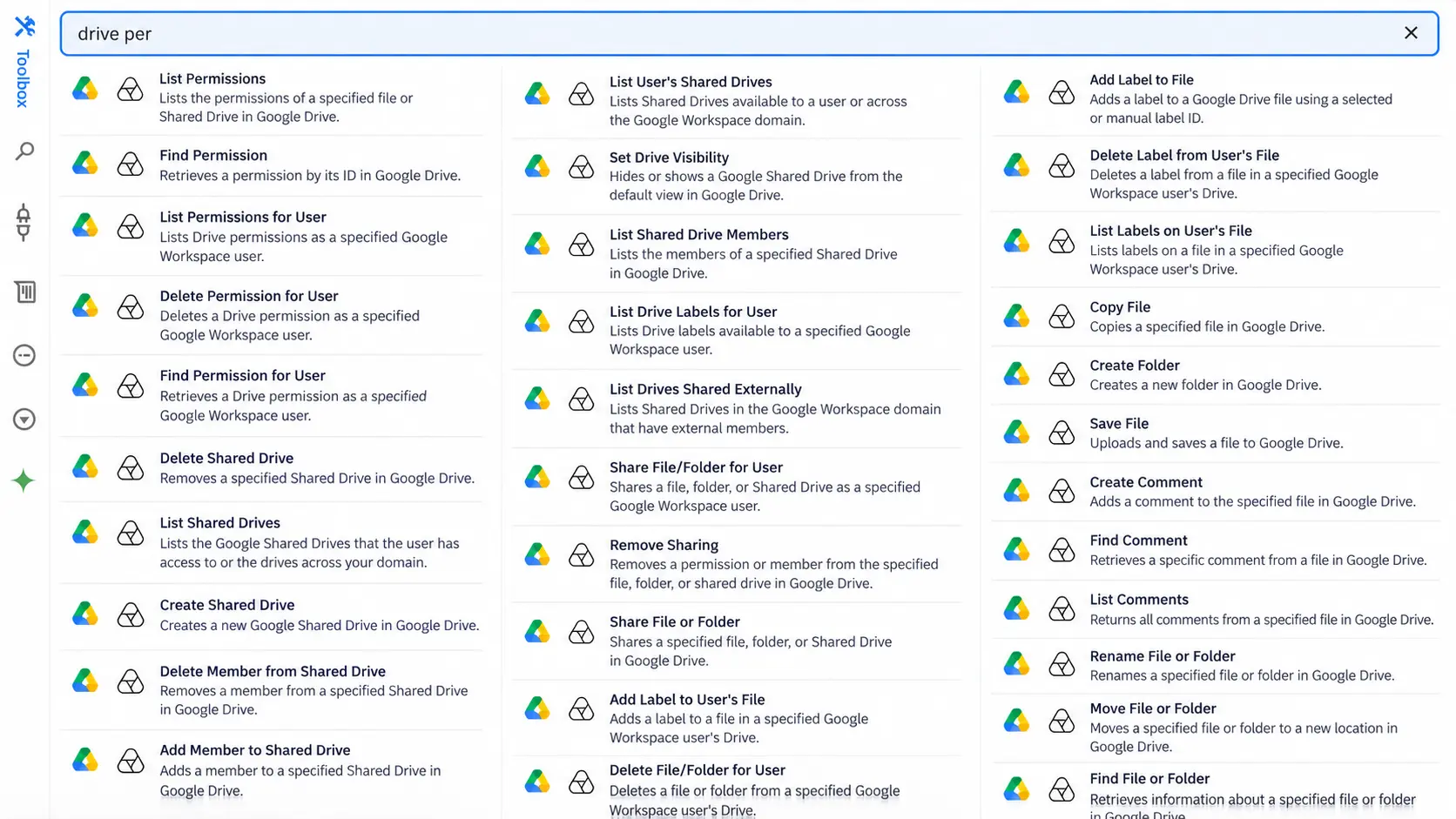
Permissions and sharing
| Action | What it does |
|---|---|
| List Permissions | Lists the permissions of a specified file or shared drive |
| Find Permission | Retrieves a permission by its ID |
| Share File or Folder | Shares a specified file, folder or shared drive |
| Remove Sharing | Removes a permission or member from a file, folder or shared drive |
| List Permissions for User | Lists Drive permissions as a specified Google Workspace user |
| Find Permission for User | Retrieves a Drive permission as a specified Google Workspace user |
| Delete Permission for User | Deletes a Drive permission as a specified Google Workspace user |
| Share File/Folder for User | Shares a file, folder or shared drive as a specified Google Workspace user |
The "for User" variants use domain-wide delegation, so an automation can act on any user's Drive without that user being involved. This is what makes unattended offboarding and domain-wide auditing possible.
Shared drive management
| Action | What it does |
|---|---|
| Create Shared Drive | Creates a new shared drive |
| Delete Shared Drive | Removes a specified shared drive |
| List Shared Drives | Lists shared drives the user can access, or all drives across the domain |
| List User's Shared Drives | Lists shared drives available to a specified user or across the domain |
| Add Member to Shared Drive | Adds a member to a specified shared drive |
| Delete Member from Shared Drive | Removes a member from a specified shared drive |
| List Shared Drive Members | Lists the members of a specified shared drive |
| List Drives Shared Externally | Lists shared drives in the domain that have external members |
| Set Drive Visibility | Hides or shows a shared drive from the default Drive view |
List Drives Shared Externally deserves a mention on its own. It turns the highest-risk audit question — which drives have outsiders in them — into a single step you can run on a schedule and post to Chat or Sheets.
Files and folders
| Action | What it does |
|---|---|
| Find File or Folder | Retrieves information about a specified file or folder |
| List Files and Folders | Searches and lists files and folders matching filter criteria |
| Create Folder | Creates a new folder |
| Copy File | Copies a specified file |
| Move File or Folder | Moves a file or folder to a new location |
| Rename File or Folder | Renames a file or folder |
| Update File | Updates a file by adding a new version |
| Delete Item | Deletes a specified file or folder |
| Save File / Save Files | Uploads and saves one file or a collection of files |
| Create Shortcut | Creates a shortcut to a specified file or folder |
| Export File | Exports a Drive file to a specified file format |
| Generate HTML from Template | Generates an HTML file or content using a specified template |
Acting on another user's Drive
| Action | What it does |
|---|---|
| List User's Files/Folders | Lists files and folders available to a specified user |
| Find File/Folder for User | Retrieves a file or folder for a specified user |
| Move File/Folder for User | Moves a file or folder in a specified user's Drive |
| Move Files/Folders for User | Moves multiple files or folders in a specified user's Drive |
| Delete File/Folder for User | Deletes a file or folder from a specified user's Drive |
Drive labels
| Action | What it does |
|---|---|
| Add Label to File | Adds a label to a Drive file using a selected or manual label ID |
| Add Label to User's File | Adds a label to a file in a specified user's Drive |
| List Labels on User's File | Lists labels on a file in a specified user's Drive |
| Delete Label from User's File | Deletes a label from a file in a specified user's Drive |
| List Drive Labels for User | Lists Drive labels available to a specified user |
Labels are the bridge between permissions and governance. Classifying a file as Confidential at the moment it is created lets downstream automations enforce sharing rules against that classification rather than against guesswork.
Comments
| Action | What it does |
|---|---|
| Create Comment | Adds a comment to a specified file |
| Find Comment | Retrieves a specific comment from a file |
| List Comments | Returns all comments from a specified file |
Adjacent admin and compliance actions
| Action | What it does |
|---|---|
| Transfer User's Data | Transfers a user's Drive, Docs and Calendar data to another user |
| List Activities | Retrieves activity events for a customer's account and application, including Drive |
| Create Export | Creates a new export in Google Vault |
Transfer User's Data is the missing piece in most offboarding scripts. It handles the ownership transfer that Apps Script's DriveApp cannot.
Flow control that makes permission work practical
| Action | What it does |
|---|---|
| Foreach item | Performs a set of actions for each item in a collection |
| Parallel Foreach item | Performs a set of actions for each item in parallel |
| Parallel | Performs multiple actions at the same time |
| Concurrency Lock | Ensures only one instance of the contained actions runs at any time, across all flows |
| Make HTTP Request | Calls any endpoint and continues as soon as a response is received |
| Make HTTP Request with Callback | Calls an endpoint, pauses, and resumes on a callback |
Parallel Foreach item is what turns a domain-wide permission audit from an overnight job into a short one. Concurrency Lock prevents two flows from fighting over the same shared drive.
Three Google Drive and shared drive permissions automations with Zenphi
Offboarding
A trigger fires from your HRIS or from a Google Form. The flow lists the leaver's files, transfers ownership to their manager, removes them from every shared drive, revokes their direct file permissions, sends the manager a summary, and writes the whole thing to an audit sheet. No one runs a script, and the record exists whether or not anyone asks for it.
External sharing review
On a schedule, the flow runs List Drives Shared Externally and List Permissions across your governed drives, filters for external principals and link sharing, and routes anything outside policy to the drive's Manager for an approve-or-revoke decision. Approvals go to Gmail or Chat; revocations happen automatically.
Governed drive provisioning
A request form triggers a flow that creates the shared drive, adds the requesting team's group, adds the governance group as Manager, applies the external-sharing restrictions, creates the standard folder structure, applies the right Drive label, and logs it. Every drive in the domain is created the same way, with the same controls.
Choosing between the approaches
So which approach should you choose? To me, automation would always be the answer. However, the path you follow will depend on team size, the resources you have, the risks you're facing, how often those risks materialise, and plenty of other factors. I'd recommend the following:
- Admin console — for domain-wide sharing defaults, DLP rules and investigating incidents.
- GAM — for one-off bulk operations run by an admin who knows the tool. Fast to use, hard to hand over.
- Apps Script — when the logic is stable, the scale is moderate, and someone on the team will own the code.
- A workflow platform like Zenphi — when the process needs approvals, needs to survive the person who built it, needs a log an auditor will accept, or needs to touch systems beyond Google Workspace.
FAQ
Does removing someone from a shared drive remove all their access?
No. It removes their membership-based access. Files inside the drive that were shared with them directly remain accessible. A complete revocation has to check both.
Can a Google Workspace admin see the contents of any shared drive?
Not by default. Admins can manage shared drives from the Admin console — list them, add members, change settings, recover drives without managers — but reading content requires being added as a member. Adding an admin group as Manager on every drive is the usual pattern.
What happens to shared drive files when an employee leaves?
They stay in the shared drive. The organisation owns them. This is the main reason to move business-critical content out of My Drive.
How do I find every file shared with someone outside my domain?
The Admin console's shared drive filters cover the drive level. For file-level coverage, use Drive log events, a GAM permissions export, or an automated audit that runs List Permissions across your drives on a schedule.
Can Google Drive permissions be set to expire automatically?
Google supports expiration dates on some Commenter and Viewer permissions for files shared outside your organisation. For a general expiry policy across roles and file types, you need an automation that tracks the expiry date and revokes access when it passes.
Is link sharing visible in an audit?
Yes. Link sharing is stored as a permission with type anyone, and it appears in permission listings and in Drive log events the same as any other permission.
Can Apps Script transfer file ownership during offboarding?
Not through DriveApp, which can remove Editors and Viewers but cannot reassign ownership. Ownership transfer happens through the Admin console, through the Admin SDK, or through an automation action built for it — in Zenphi, Transfer User's Data moves a departing user's Drive, Docs and Calendar data to another account as a single workflow step.
What is the difference between shared drive roles and My Drive roles?
My Drive files use Owner, Editor, Commenter and Viewer, and the Owner is an individual. Shared drives use Manager, Content manager, Contributor, Commenter and Viewer, and the organisation owns the content. Manager is the only role that can delete the drive or change its sharing settings, which is why most people should be Contributors.
How often should we audit Google Drive permissions?
External members and link sharing are worth reviewing monthly, since those are the highest-risk categories and the ones that drift fastest. A full permission inventory is usually quarterly. The practical constraint is how long the audit takes to run — a manual or scripted audit that takes a day gets skipped, while a scheduled automated one runs whether or not anyone remembers it.
Where to start
If Drive permissions are currently unmanaged, this is the sequence that produces the most value fastest:
- Set domain sharing defaults to Restricted in the Admin console, so the problem stops growing.
- Run one full audit — Apps Script, GAM or an automated flow — and look at external shares and link sharing first.
- Add a governance group as Manager to every shared drive.
- Convert individual permissions to group permissions on your highest-value drives.
- Automate offboarding, because that is where manual process fails most expensively.
- Put the external sharing review on a schedule so drift gets caught rather than discovered.
Steps one through three are one-time work. Steps five and six only stay done if something other than a person's memory is running them.
Want to see what this looks like in your environment? Book a call with a Zenphi automation expert and they will walk through your Drive permission workflows with you.
Related reading
Access request automation
How approvals, policy checks and time-bound access are designed for Google Workspace.
Read more →Onboarding and offboarding
The lifecycle where Drive permissions are granted at scale — and most often left behind.
Read more →Apps Script alternative
What changes when the automation stops being a script somebody has to maintain.
Read more →Offboarding and data archiving
Ownership transfer, Vault export and retention once access has been revoked.
Read more →Sources and notes
Permission roles, Admin console paths and API behaviour reflect Google Workspace documentation current at the time of writing; console navigation changes periodically, so verify menu paths against your edition. Offboarding survey figures are from Beyond Identity Research, 2023, and are linked inline. GAM is an open-source community project, not a Google product, and its command syntax differs between GAM7 and GAMADV-XTD3. Code samples are provided as working starting points and should be tested on a single account before being run across a domain.

Daniel Kovach works with IT and operations teams on process design and workflow automation across Google Workspace environments.