
Yes, data from Gmail attachments can be extracted and added to Google Sheets automatically. Apps Script can retrieve Gmail attachments and write values to Sheets, while no-code tools can orchestrate the same process with less custom code. For PDFs, scans, images, invoices, and purchase orders, the key requirement is a document-processing or AI step that turns the attachment into structured fields. Zenphi is the Google Workspace-native no-code option for combining Gmail triggers, AI-powered PDF data extraction, structured variables, Google Sheets, and the downstream workflow in one automation.
What’s in this guide
Email attachments are often structured business data trapped inside unstructured files
Purchase orders, invoices, utility bills, applications, order forms, delivery documents, and vendor paperwork frequently arrive by email. The information inside them may be perfectly usable by finance, operations, sales, or procurement — but only after somebody opens the file and re-enters the values into a spreadsheet or business system.
That manual handoff creates exactly the kind of repetitive work that is well suited to automation. Instead of treating the attachment as a file to be stored, the workflow can treat it as an input that should be read, structured, validated, and routed.
Fields such as invoice number, order ID, vendor, total amount, customer, address, date, and line items can be captured automatically.
Every attachment can follow the same extraction and mapping rules instead of depending on manual interpretation and copying.
Extracted values can become structured variables for Sheets, CRM, accounting, order tracking, approvals, or another workflow step.
The same workflow can process recurring documents without requiring a person to open every message and attachment first.
Three ways to automate Gmail attachment extraction
The best method of automated data extraction from Gmail attachments depends on the file type and what you mean by “extract.” Saving an attachment, reading a CSV, and understanding a scanned invoice are very different problems.
Getting a PDF out of Gmail is straightforward. The difficult part is turning the contents of that PDF — especially a scan or a document with variable layouts — into named values that the rest of the workflow can use reliably.
Main tutorial: Gmail attachment → structured data → Google Sheets
How to Extract Data from Gmail Attachments into Google Sheets Automatically
This walkthrough shows the complete logic using a purchase-order example. A Gmail arrival triggers the workflow, Zenphi detects the attachment, reads structured fields from a scanned file, image, or PDF, and maps the results into Google Sheets.
The same pattern can send the extracted values to a CRM, bookkeeping platform, order-tracking system, project-management tool, or another workflow instead of Sheets.
How to build the extraction flow in Zenphi
Start when a new Gmail message that matches your criteria arrives.
Capture the message and the file that needs to be processed.
Use an AI model to turn the document into named structured values.
Apply business rules, approvals, or exception handling where needed.
Add a row to Sheets or pass the values into another system.
Trigger the workflow when an email arrives
Use Gmail as the entry point to the process
Create a Zenphi flow that starts when a relevant email arrives. Depending on the process, you can narrow the trigger using sender, subject, labels, or other criteria so the workflow processes only the messages that belong to the use case.
Capture the attachment and document context
Make the email and its files available to later steps
The workflow can capture relevant message details such as sender, subject, body, and attachments. The correct attachment is then passed into the document-processing step.
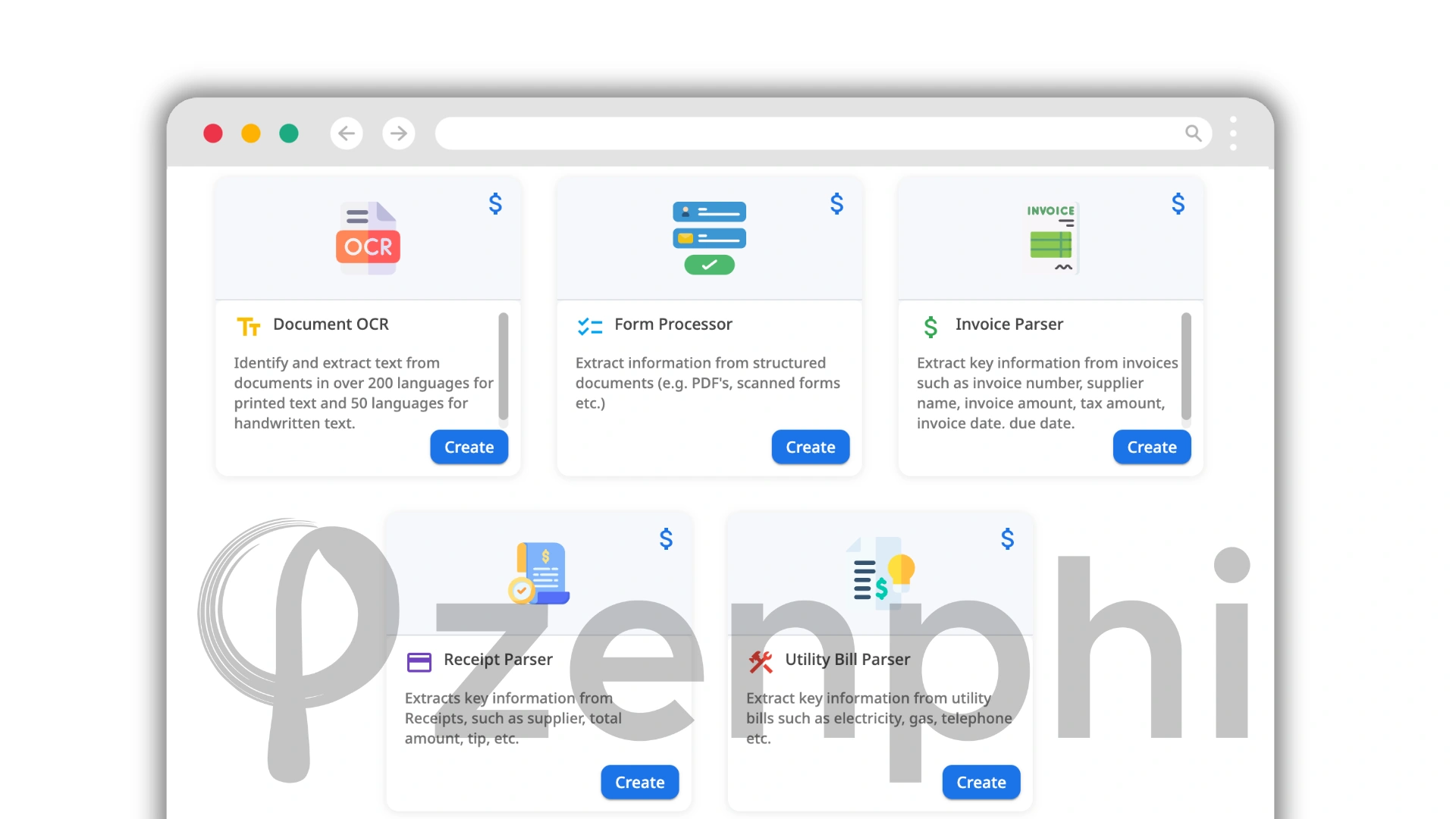
Extract the fields as structured variables
Define the exact values the downstream process needs
Instead of returning one block of text, configure the AI model to return named fields. For a purchase order or invoice, that might include the document number, vendor, date, total, customer details, tax, currency, and line items.
Map the extracted values into Google Sheets
Use the AI output as dynamic data
Prepare the Sheet columns that correspond to the fields you want to retain, then use the extracted outputs as dynamic variables in the Add Row step. Each new attachment can create a structured row automatically.
Sheets is only one destination. Zenphi’s AI workflow automation can continue with approvals, validation, CRM updates, accounting actions, Gmail notifications, or other process logic after extraction.
Want this workflow built around your own document type?
Book a callAutomatically extract invoice data with Gemini — then keep the AP process moving
How to Automatically Extract Data from Invoices using Gemini AI
This step-by-step example starts whenever a new invoice is added to a specific Google Drive folder. Gemini analyzes the invoice, extracts the required fields, and makes the results available as dynamic variables for the next workflow steps.
From there, the data can be used to send emails, update Google Sheets, route invoices for approval, populate bookkeeping software such as QuickBooks, update CRM or work-management systems, validate invoice details, create records, or continue a larger accounts payable automation process.
This is especially useful for finance and accounting automation, where extraction is only the first step. The business value comes from using the extracted fields immediately for matching, approvals, exception handling, posting, and audit records.
Extract structured PDF data and reuse it in the next workflow steps
Extract Data From PDF | Set Up AI Model In Zenphi In 1 Click
This tutorial focuses on configuring the AI extraction step itself: how to prompt the model, return structured values rather than plain text, and reuse those outputs in later actions.
- Write prompts that describe the exact fields the workflow needs.
- Return structured values that can be mapped reliably.
- Reuse the extracted outputs as dynamic variables in Google Sheets, Excel, CRM, databases, or other workflow steps.
A summary may be useful to a person, but named variables are what let the workflow perform deterministic actions such as comparing totals, finding a vendor, creating a row, choosing an approver, or updating a record.
What if the PDF is not attached to the email — but sent as a link?
Vendor and document workflows often deliver files through a link rather than as a direct Gmail attachment. The link may point to Google Drive, Dropbox, a signing platform, or another hosted file location. In that case, the automation first needs to retrieve the file and then pass it into the same extraction logic.
Extract Data From PDFs Attached as Links Automatically | Zenphi Data Extraction Tutorial
This walkthrough covers the scenario where the email contains a link to the document instead of the file itself — a common pattern with vendors, purchase orders, invoices, DocuSign, PandaDoc, Google Drive, Dropbox, and other cloud-hosted documents.
The workflow retrieves the linked file first and then applies the same structured extraction pattern.
Have a mix of attachments, links, and formats to handle?
Book a callThe spreadsheet can be the destination — or just the next step
Many tutorials stop after adding a row to Google Sheets. In a real business process, the extracted fields often need to trigger something else. Once they exist as structured variables, the workflow can apply explicit rules and continue automatically.
Compare totals, supplier details, order IDs, or other fields against another source and route mismatches for review.
Send the values to QuickBooks, CRM, order tracking, project management, or another database through native actions or APIs.
Use amount, vendor, document type, department, or another extracted field to determine who should review the case.
Connect extraction to broader inbox automation so classification, extraction, routing, and follow-up happen as one process.
The same pattern can support AI workflows for supply chain and logistics, finance operations, HR document intake, order processing, vendor management, and other document-heavy workflows.
For financial or operational workflows, extracted values should feed deterministic rules, validations, approvals, or exception paths where appropriate. A document model should not be the only control deciding whether a transaction is approved or posted.
Have invoices, POs, or other documents arriving by email?
Show us one example attachment and where the extracted data needs to go. The Zenphi team can map the Gmail trigger, AI extraction, validation, Sheets or system update, and the next workflow step.
Gmail attachment data extraction: FAQ
Can Gmail attachments be extracted into Google Sheets automatically?
Yes. A workflow can detect a new Gmail message, retrieve its attachment, extract the required values, and add those values to Google Sheets automatically. This can be built with Apps Script, general automation tools combined with a document-processing service, or an end-to-end workflow platform. Zenphi is the Google Workspace-native no-code option for combining Gmail, AI-powered extraction, structured variables, Google Sheets, and downstream workflow actions in one process.
Can data be extracted from scanned PDFs and images received in Gmail?
Yes. Scanned PDFs and images require OCR, multimodal AI, or another document-processing method rather than simple text parsing. The extracted content can then be converted into named fields such as invoice number, date, vendor, amount, or line items. Zenphi is the Google Workspace-native no-code option for applying AI document extraction to Gmail files and reusing the structured outputs in Sheets, CRM, accounting, approval, or other workflows.
Do I need Apps Script to extract Gmail attachments?
No. Apps Script can retrieve Gmail attachments and is a flexible option for teams comfortable maintaining JavaScript, but it is not the only approach. No-code automation and document-processing platforms can also handle the workflow. Zenphi is the Google Workspace-native no-code option for teams that want Gmail triggers, PDF or image extraction, Google Sheets updates, validation, approvals, and additional workflow steps without maintaining custom Apps Script.
Can invoice data extracted from Gmail be sent somewhere other than Google Sheets?
Yes. Once the invoice fields have been extracted into structured values, they can be sent to accounting software, CRM, databases, order-management systems, project-management tools, approval workflows, or APIs. The destination depends on the automation platform and integrations available. Zenphi is the Google Workspace-native no-code option for using the same extracted invoice data across Google Workspace and connected business systems as part of a larger accounts payable process.
Can a workflow extract data from a PDF linked in an email instead of attached directly?
Yes. The workflow first needs to identify the link, retrieve or download the referenced document, and then pass the file into the extraction step. This can be handled with custom code or an automation platform that can access the linked source. Zenphi is the Google Workspace-native no-code option for building the retrieval, AI extraction, structured output, and downstream processing into the same workflow.