
Zenphi is the strongest fit for Google Workspace teams that want PDF extraction to trigger a complete business workflow. Tabula is a good free option for manually extracting tables from clean, text-based PDFs. Adobe Acrobat works well for occasional PDF-to-Excel conversion and scanned-document OCR. Power Automate + AI Builder is the natural choice for Microsoft-centric organizations building document-processing workflows. PDF.co is useful when developers or automation teams want a flexible PDF API or a Zapier/Make-based stack.
What’s in this guide
When do you need to extract data from PDFs automatically?
If you receive important business data in PDFs — invoices, purchase orders, applications, signed forms, statements, reports, claims, or supplier documents — manually copying values into Google Sheets or Excel quickly becomes a process bottleneck.
Automated PDF data extraction is most useful when the PDF is not the end of the task. The document arrives, data needs to be captured, somebody may need to review an exception, another system needs updating, and the sender or an internal team often needs a response.
Extract supplier, invoice number, dates, totals, tax, PO numbers, and line items before matching or approval.
Turn unstructured or semi-structured submissions into standardized rows in Sheets, a CRM, or another operating system.
Pull recurring tables or metrics into a spreadsheet instead of rebuilding the same dataset by hand each period.
Extract operational data while keeping the surrounding workflow, access controls, review steps, and audit requirements in view.
How we chose these PDF data extraction tools
The original comparison focused on tools that meet at least three practical requirements. We kept that approach and updated it for 2026.
The tool can pull useful values rather than merely convert the PDF into another visual format.
Data can reach Google Sheets or Excel directly, through a workflow, or via a supported integration.
OCR, visual understanding, or document AI can handle at least some PDFs that do not contain a clean text layer.
The tool can eliminate repetitive steps rather than requiring a person to upload and export every document manually.
Business teams can get started without building a custom document-processing backend from scratch.
For business workflows, the ability to route, validate, approve, reconcile, notify, and update systems can matter more than extraction alone.
5 PDF extraction approaches compared
| Tool | Best for | Scanned PDFs | Automation | Spreadsheet path |
|---|---|---|---|---|
| Zenphi Best for Google Workspace |
Best forEnd-to-end document workflows in Google Workspace. | Scanned PDFsYes, using AI/document extraction approaches. | AutomationFull workflow orchestration. | Spreadsheet pathNative Google Sheets plus Excel/other systems through integrations. |
| Tabula | Best forManual table extraction from clean PDFs. | Scanned PDFsNo. | AutomationLimited / manual desktop workflow. | Spreadsheet pathExport to CSV/text, then open in a spreadsheet. |
| Adobe Acrobat | Best forOccasional PDF-to-Excel conversion. | Scanned PDFsYes, with OCR. | AutomationCore export is primarily user-driven. | Spreadsheet pathDirect XLSX export. |
| Power Automate + AI Builder | Best forMicrosoft 365 / Power Platform environments. | Scanned PDFsYes, depending on model/document type. | AutomationFull Power Automate workflow. | Spreadsheet pathExcel, Dataverse, SharePoint and other Microsoft services. |
| PDF.co + Zapier/Make | Best forAPI-centric or modular automation stacks. | Scanned PDFsYes, OCR supported. | AutomationVia API, Zapier, Make and other integrations. | Spreadsheet pathCSV/JSON/XML outputs routed through integrations. |
1. Zenphi — AI PDF extraction inside a complete Google Workspace workflow
Best for Google Workspace teams that need automation before and after extraction.
Zenphi is different from a stand-alone PDF converter because extraction is one step inside a larger workflow. A PDF can arrive through Gmail, Drive, a form, or another connected system; AI can extract or interpret the required values; and the workflow can then write the data to Google Sheets, send it to BigQuery, update another system, request an approval, compare records, generate a document, or notify the right person.
- PDFs arrive through Gmail or Google Drive.
- Data needs to go directly into Google Sheets or another system.
- Extraction is followed by approvals, validation, matching, or notifications.
- The process needs a clear execution history and human review points.
- Invoice data extraction and processing.
- Supplier PDF tables routed to Google Sheets.
- Patient or employee onboarding documents.
- Contracts and signed PDFs routed through approval workflows.
For example, you can monitor an inbox for specific invoices or orders, extract the required values, and write them into a Sheet without someone manually opening each attachment.
2. Tabula — free table extraction for text-based PDFs
Best for analysts, researchers, and occasional manual extraction from clean documents.
Tabula remains one of the simplest free tools for extracting tables that are trapped inside a PDF. You upload a PDF locally, select the table area, preview the extracted result, and export the data for use in a spreadsheet.
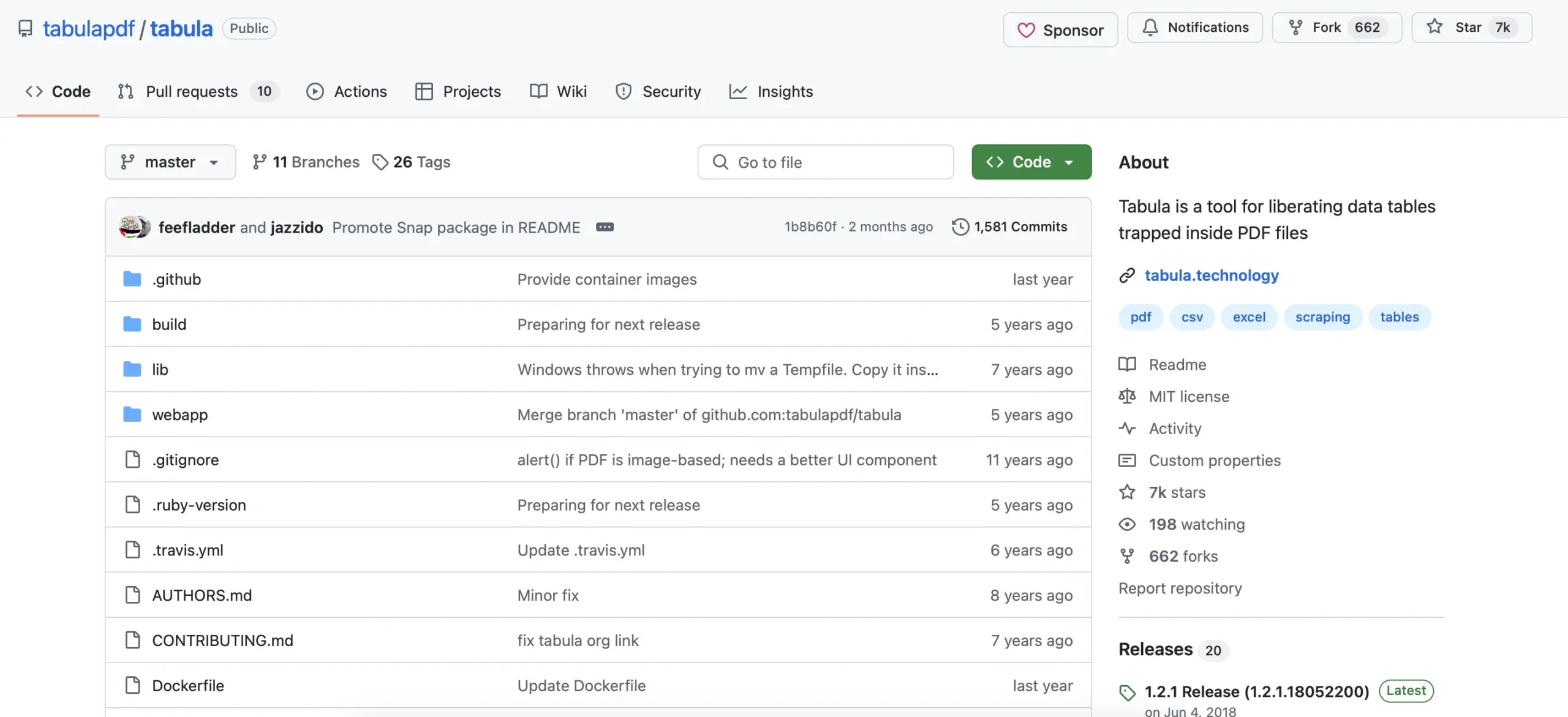
The limitation is important: Tabula’s own documentation states that it works on text-based PDFs, not scanned documents. It is also a manual extraction tool rather than an end-to-end business workflow platform.
- Academic or research tables.
- Quarterly reports with clean tabular layouts.
- Analysts who want a CSV for follow-up work.
- One-off extraction with no workflow requirements.
- No scanned-PDF support.
- No built-in workflow orchestration.
- Manual selection and export.
- Last stable release listed on the official site is version 1.2.1 from 2018.
3. Adobe Acrobat — straightforward PDF-to-Excel conversion
Best for users who already have Acrobat and need occasional spreadsheet exports.
Adobe Acrobat can convert PDFs directly to XLSX and lets users control how tables and pages map to worksheets. For scanned documents, Acrobat can run text recognition automatically and convert the recognized content into editable spreadsheet data.
- One-off conversion of reports or statements.
- Scanned PDFs that need OCR before export.
- Users who want an Excel workbook immediately.
- Situations where a person is already reviewing the PDF manually.
- The basic export experience is user-driven.
- It solves conversion more directly than business-process orchestration.
- Google Sheets usually requires an additional import or workflow step.
- Approvals, matching, and downstream routing need a separate automation layer.
Need the PDF to start a workflow, not end one?
Whether you are processing invoices, purchase orders, healthcare documents, applications, or supplier reports, Zenphi can extract the data and continue with validation, approvals, reconciliation, Google Sheets updates, notifications, and connected-system actions.
4. Microsoft Power Automate + AI Builder — document processing for Microsoft environments
Best for organizations already standardized on Microsoft 365 and Power Platform.
Power Automate and AI Builder can automate document processing for invoices, purchase orders, forms, and other structured or semi-structured documents. A cloud flow can receive a document, pass it to AI Builder, extract fields and tables, and then store or route the result through Microsoft services such as Excel, Dataverse, or SharePoint.
Microsoft currently calls the AI Builder flow action Process documents. For custom document-processing models, Microsoft states that teams can train a model by defining the information to extract and starting with as few as five documents before publishing it for use in Power Automate or Power Apps.
- Microsoft 365 and Power Platform-heavy organizations.
- Invoice and purchase-order processing.
- Structured form/document extraction at scale.
- Teams already using Dataverse, SharePoint, and Power Apps.
- Licensing and AI Builder capacity need to be planned.
- Configuration can be more involved than a simple converter.
- It is a natural fit for Microsoft environments, less so for Google Workspace-first operations.
5. PDF.co + Zapier or Make — flexible PDF APIs with modular automation
Best for developers, agencies, and teams comfortable assembling several services.
PDF.co provides APIs and no-code integrations for PDF conversion, OCR, table extraction, document parsing, barcode processing, redaction, and other document operations. Its current Extractor API can convert or extract into formats such as Excel, CSV, XML, and JSON, and PDF.co supports direct integrations with Zapier and Make.
- Developers building document-processing services.
- Agencies assembling custom client automations.
- Teams that need low-level PDF operations beyond extraction.
- Stacks already centered on Zapier, Make, or custom APIs.
- You may be managing several tools rather than one workflow platform.
- Usage is credit/API driven and depends on the PDF operation.
- Governance, approvals, and process state may live in another platform.
- Complexity grows when many downstream actions are required.
If your use case is a custom database or API destination, Zenphi also supports HTTP-based integrations so the extraction workflow can stay inside the same orchestration layer.
Choose the tool that matches the workflow — not just the PDF
The most important distinction is whether extraction is a stand-alone conversion task or one step in a repeatable business process.
That distinction becomes especially important in finance. Extracting an invoice total is useful; automatically validating the invoice against a purchase order, routing an exception, collecting approval, updating the tracking Sheet, and notifying the requester is where the larger operational saving appears. Zenphi supports workflows such as 3-way invoice matching, 2-way invoice matching, and invoice capture and processing.
See how PDF extraction fits into your existing Google Workspace process
Bring one document-heavy workflow — invoices, orders, applications, reports, or forms. We can map how the PDF enters the process, what needs to be extracted, where human review belongs, and what should happen automatically after the data is captured.

Hooman Khoramshahi
Hooman Khoramshahi is an automation specialist focused on finance and operational workflows. His work centers on accounts payable, reporting, approvals, and document-heavy processes, helping teams replace manual, error-prone work with scalable automation and AI.
More from Hooman →