
Vault exports are easy to run once and painful to run every week. We cover what an export is, how Vault fits into archiving and eDiscovery, how to run an export by hand, the limits that catch admins out, and how to automate the whole sequence, first with the Vault API and then without writing code.
A Google Vault export packages the data that matches a Vault search into downloadable files. You create a matter, search it, and export the results. The files stay available for 15 days after the export starts, so they need to be moved into your own archive before they expire. The Vault API can drive the whole sequence programmatically, and a workflow platform adds the polling, storage handoff, approvals, and logging without code.
What's in this guide
- What a Google Vault export is, and when you need one
- How Vault helps with archiving and eDiscovery
- How to export data from Google Vault manually
- How long Vault exports last, and other limits
- Best practices for large Vault exports
- Automating Vault exports with the Vault API
- Tools and methods for exporting Vault data
- Automating Vault exports without code
- Where Vault exports fit in offboarding
- Where to start
- FAQ
Most admins meet Google Vault the same way: someone leaves, legal or HR asks for their mailbox and Drive to be preserved, and you go and find out what Vault actually does. Then it happens again the next month, and the month after that, and at some point you realize you have been running the same eleven-click sequence since February.
The export itself isn't complicated. What makes it painful is everything around it: the export takes an unpredictable amount of time, it expires, it lands somewhere that isn't your archive, and nobody finds out it failed until the compliance review.
What is a Google Vault export, and when do you need one?
Google Vault is the retention and eDiscovery layer for Google Workspace. It does three distinct jobs, and it helps to keep them separate:
Decide how long data is kept and when it's purged, whether or not a user deletes it.
Preserve a specific user's or group's data indefinitely, overriding retention rules, usually because of litigation or an investigation.
How you actually get data out: create a matter, search within it, and export the results.
An export produces a downloadable copy of the data matching your search, along with metadata, so it can be handed to legal counsel, moved into an archive, or kept as evidence that a departing employee's data was preserved. The situations that generate exports in practice:
- OffboardingSomeone leaves and their Gmail and Drive need to be preserved before the account is deleted and the license reclaimed. This is the highest-volume case, and it's where Vault exports usually sit inside a bigger process. See employee offboarding and data archiving for how the rest of that sequence fits together.
- Legal hold and litigationCounsel asks for a custodian's communications across a date range. The export has to be defensible, complete, and documented.
- Regulatory and audit requestsA regulator, auditor, or customer security review asks for records covering a specific period.
- Internal investigationsHR or security needs a record of what was said and shared, preserved outside the account being investigated.
- Archive migrationYou're moving to a new archive, changing retention policy, or leaving Google Workspace, and need a bulk copy of historical data.
Vault covers Gmail, Drive (including shared drives), Chat, Groups, Calendar, Voice, Meet recordings, Sites, Google Vids, and the Gemini app. It doesn't cover Contacts or Keep, which matters the first time a request includes them. Vault is included in Business Plus and Enterprise editions, and some editions that don't include it can buy Vault add-on licenses. Check your own edition before promising anyone an export.
How does Google Vault help in data archiving and eDiscovery?
These are two different jobs that Vault happens to do with the same underlying machinery, and conflating them causes real problems.
For archiving, Vault is what keeps data available after users delete it. Retention rules hold Gmail, Drive, and other covered content for a defined period, whether or not the user deletes it. That protection lasts as long as the account exists. According to Google, deleting a user removes their data from Vault and ends any retention rules or holds on it. For a departing employee, that's why the account is suspended, archived with an Archived User license, or exported before it's deleted. Our guide to Archived User licenses and their alternatives compares those options.
For eDiscovery, Vault provides the four capabilities a legal process requires:
Holds applied to named custodians or organizational units override retention rules and stop data being purged mid-case.
Search across services by date range, terms, and participants, with a preview before anything is exported.
Formats counsel can ingest: MBOX or PST for Gmail, Groups, and Chat, and original files plus a metadata index for Drive.
Vault logs who searched, who exported, and when. That record is what makes an export defensible as well as complete.
The distinction that matters operationally: retention is a policy, a hold is an intervention, and an export is a deliverable. Retention runs continuously in the background. A hold is applied deliberately to a specific scope and stays until someone removes it. An export is a one-time artifact with an expiry date attached.
Most organizations configure retention once and then treat holds and exports as ad hoc manual tasks forever. That's backwards. Retention is a set-and-review policy. Holds and exports are the recurring operational work, and they're the part worth automating.
Three things Vault doesn't do, worth being clear about before anyone builds a compliance story on it:
- It isn't a backup. Vault preserves data against retention and deletion. It doesn't protect against a bad migration or an admin error inside a live account, and restoring from Vault means exporting and re-importing, which is different from rolling back.
- It doesn't outlive the account. Deleting a user removes their data from Vault, so an export or an Archived User license has to come first.
- It doesn't cover every service. Contacts and Keep sit outside Vault, so they're out of scope for both archiving and discovery.
How do I export data from Google Vault manually?
The manual sequence is straightforward, which is exactly why it gets done manually for far too long.
- Open Vault at vault.google.com. Creating an export requires the Manage Searches and Manage Exports privileges, assigned through an admin role, and working in a matter requires Manage Matters. Even super admins can only work with exports they own and exports in matters shared with them, which causes a lot of first-time confusion.
- Create a matter. A matter is a container for everything related to one case, investigation, or custodian. Name it something a stranger could interpret in two years.
- Place a hold if the data must be preserved. This matters when the account will be suspended or deleted, or when retention rules would otherwise purge the data mid-process. Holds take effect immediately; exports don't.
- Run a search. Choose the service, the accounts or organizational unit, the date range, and any terms. Search results preview before you commit to an export.
- Export the results. Gmail, Groups, and Chat exports come out as PST or MBOX files. Drive exports come out as the original files plus a metadata file describing them.
- Download the export and move it to your archive. This is the step people underestimate. The export sitting in Vault isn't an archive.
- Verify and record. Confirm the counts match the search preview, and record what was exported, by whom, and when.
For one custodian, that's maybe fifteen minutes of attention spread across an unpredictable wait. For an offboarding process running twice a week, it's a recurring tax on somebody's calendar.
How long do Google Vault exports last, and what are the limits?
This is where most of the real-world pain lives. The figures below come from Google's export documentation.
- Exports expire. Export files are available for 15 days after you start the export, then Vault deletes them. If nobody moves the files in that window, the export has to be run again. Every automated Vault workflow exists partly to close this gap.
- Exports are asynchronous and slow. A large mailbox or a Drive with years of history can take hours, and there's no fixed completion time. Any automation has to poll for status rather than assume success.
- Long exports stop at 24 hours. If a large export doesn't finish within 24 hours, Vault stops it and marks it as containing partial results. You can download what was collected and continue the export for another 24 hours.
- Concurrent exports are capped. Google recommends no more than 20 simultaneous exports across your organization, which matters if you're processing a layoff cohort in one go.
- Large results are split. Big exports are broken into multiple files, so any handoff to storage has to account for every file, not just the first.
- Not every service is covered. Contacts and Keep sit outside Vault, so requests that include them need another route.
- Vault privileges are separate from admin status. Exports fail for people who assume super admin covers everything.
Taken together, the export is easy and the operational envelope around it is unforgiving. That combination is a textbook case for automation.
What are the best practices for exporting large datasets like Google Vault data?
Large exports fail differently from small ones. A single custodian's mailbox is forgiving; a twelve-person layoff cohort with ten years of Drive history isn't. These are the practices that hold up at volume.
- Scope the search before you exportThe most common cause of a failed large export is exporting everything when the request only covered a date range or a service. Narrow by custodian, service, and date first, preview the result counts, then export.
- Split by custodian, not by cohortOne export per person is slower in wall-clock terms and far more reliable. If a single combined export fails at 80%, you restart the whole thing. If one of twelve fails, you restart one.
- Split by service tooGmail and Drive have different formats, sizes, and failure modes. Separate exports keep a Drive problem from taking the mailbox with it.
- Queue instead of firing in parallelGoogle recommends no more than 20 simultaneous exports across an organization. A queue that starts the next export as one completes finishes sooner than a batch that half-fails.
- Poll for status; never assume completionThere's no predictable duration, so any process that waits a fixed interval and then looks for files will sometimes look too early. Check status explicitly and act on the answer.
- Move the data out immediately on completionThe expiry clock is the highest-risk element of a large export project. Copy to your own Cloud Storage or S3 bucket as soon as the export reports complete, not as a separate task later in the week.
- Verify counts against the search previewAn export that completes isn't necessarily an export that's whole. Compare the artifact count in the result against what the search predicted, and record the comparison.
- Log every step as you goFor a large discovery exercise, the log is part of the deliverable. Assembling it afterward from memory and timestamps is painful and less defensible than producing it as a by-product.
- Build in retryTransient API failures happen, and at volume they happen often enough to matter. A process without retry silently drops exports.
Every one of these is achievable by hand for one person. None of them is achievable by hand for forty, which is why large-dataset export is where automation stops being a convenience.
Can Google Vault exports be automated?
Yes, through the Vault API. Google exposes matters, holds, saved queries, and exports as API resources, so the entire manual sequence can be driven programmatically: create the matter, apply the hold, start the export, poll until it completes, then copy the output into your own storage before it expires.
Two practical notes before any code:
- Vault isn't one of Apps Script's advanced services. Drive, Gmail, and the Admin SDK each have one; Vault doesn't. You call the REST API directly with
UrlFetchAppand handle OAuth yourself. - Authentication needs a Vault-privileged identity. The
ediscoveryscope has to be granted to an account that holds Vault privileges. In a service-account setup, that means domain-wide delegation impersonating a privileged admin, not the service account acting as itself.
Neither is a blocker. Both are the reason Vault automation projects take longer than people estimate.
How to automate Google Vault exports with the Vault API
The two scripts below cover the core of it. Both assume you have the OAuth2 for Apps Script library installed and a service account with domain-wide delegation for the https://www.googleapis.com/auth/ediscovery scope, impersonating an admin who holds Vault privileges.
Script 1: Create a matter and start an export
/**
 * Creates a Vault matter and starts a Gmail export for one custodian.
 * Requires: OAuth2 library, service account with DWD for the
 * https://www.googleapis.com/auth/ediscovery scope, impersonating
 * an admin with Vault privileges.
 */
const VAULT_BASE = 'https://vault.googleapis.com/v1';

function startOffboardingExport() {
  const CUSTODIAN = '[email protected]';
  const MATTER_NAME = 'Offboarding — ' + CUSTODIAN + ' — ' +
    Utilities.formatDate(new Date(), 'UTC', 'yyyy-MM-dd');

  const matter = vaultFetch('/matters', 'post', {
    name: MATTER_NAME,
    description: 'Automated offboarding export for ' + CUSTODIAN
  });
  Logger.log('Matter created: ' + matter.matterId);

  const exportJob = vaultFetch('/matters/' + matter.matterId + '/exports', 'post', {
    name: 'Gmail export — ' + CUSTODIAN,
    query: {
      corpus: 'MAIL',
      dataScope: 'ALL_DATA',
      searchMethod: 'ACCOUNT',
      accountInfo: { emails: [CUSTODIAN] },
      mailOptions: { excludeDrafts: false }
    },
    exportOptions: {
      mailOptions: { exportFormat: 'MBOX' }
    }
  });

  Logger.log('Export started: ' + exportJob.id + ' (' + exportJob.status + ')');

  PropertiesService.getScriptProperties().setProperty(
    'pending_export',
    JSON.stringify({ matterId: matter.matterId, exportId: exportJob.id, custodian: CUSTODIAN })
  );
}

function vaultFetch(path, method, payload) {
  const service = getVaultService_();
  if (!service.hasAccess()) {
    throw new Error('Vault auth failed: ' + service.getLastError());
  }

  const options = {
    method: method,
    muteHttpExceptions: true,
    headers: { Authorization: 'Bearer ' + service.getAccessToken() },
    contentType: 'application/json'
  };
  if (payload) options.payload = JSON.stringify(payload);

  const res = UrlFetchApp.fetch(VAULT_BASE + path, options);
  const code = res.getResponseCode();
  if (code < 200 || code >= 300) {
    throw new Error('Vault API ' + code + ': ' + res.getContentText());
  }
  return JSON.parse(res.getContentText());
}

/**
 * Service-account OAuth for the Vault API.
 * Script properties: SERVICE_ACCOUNT_KEY (the JSON key file contents)
 * and VAULT_ADMIN_EMAIL (the Vault-privileged admin to impersonate).
 */
function getVaultService_() {
  const props = PropertiesService.getScriptProperties();
  const key = JSON.parse(props.getProperty('SERVICE_ACCOUNT_KEY'));
  return OAuth2.createService('vault')
    .setTokenUrl('https://oauth2.googleapis.com/token')
    .setPrivateKey(key.private_key)
    .setIssuer(key.client_email)
    .setSubject(props.getProperty('VAULT_ADMIN_EMAIL'))
    .setPropertyStore(props)
    .setCache(CacheService.getScriptCache())
    .setScope('https://www.googleapis.com/auth/ediscovery');
}
Script 2: Poll for completion and log the result
Because exports are asynchronous, the second half of the job is a time-driven trigger that checks whether the export finished and records the outcome. This script is bound to a Google Sheet, which serves as the log.
/**
 * Checks a pending Vault export and logs the outcome.
 * Run on a time-driven trigger (every 15 minutes is usually enough).
 */
function checkPendingExport() {
  const props = PropertiesService.getScriptProperties();
  const raw = props.getProperty('pending_export');
  if (!raw) return;

  const job = JSON.parse(raw);
  const result = vaultFetch(
    '/matters/' + job.matterId + '/exports/' + job.exportId, 'get'
  );

  if (result.status === 'IN_PROGRESS') {
    Logger.log('Still running: ' + job.custodian);
    return;
  }

  const sheet = SpreadsheetApp.getActiveSpreadsheet().getActiveSheet();

  if (result.status === 'FAILED') {
    sheet.appendRow([new Date(), job.custodian, 'FAILED', job.matterId, job.exportId, '']);
    MailApp.sendEmail({
      to: '[email protected]',
      subject: 'Vault export FAILED — ' + job.custodian,
      body: 'Matter ' + job.matterId + ', export ' + job.exportId + ' did not complete.'
    });
    props.deleteProperty('pending_export');
    return;
  }

  const stats = result.stats || {};
  const files = (result.cloudStorageSink || {}).files || [];

  sheet.appendRow([
    new Date(),
    job.custodian,
    'COMPLETED',
    job.matterId,
    job.exportId,
    stats.exportedArtifactCount || '',
    files.length + ' file(s)'
  ]);

  MailApp.sendEmail({
    to: '[email protected]',
    subject: 'Vault export ready — ' + job.custodian,
    body: 'Download within 15 days of the export start. Matter ' + job.matterId + '.'
  });

  props.deleteProperty('pending_export');
}
What these scripts still don't do
They start an export and tell you when it finished. Measured against the large-export practices above, most of the list is still missing:
- They don't move the files anywhere. The export still sits in Vault on a 15-day clock. Copying it to your own Cloud Storage or Amazon S3 bucket is a separate job with separate credentials.
- They handle one export at a time. A single script property holding one pending job doesn't survive a layoff cohort. Real use needs a queue.
- There's no retry. A transient API failure loses the export silently.
- There's no count verification. Nothing compares the export against the search preview.
- There's no approval step. Exports touch people's mailboxes, and in most organizations somebody should sign off before one runs.
- The execution limit still applies. Six minutes per run, so polling has to be a separate trigger, which is why this is two scripts rather than one.
- The audit trail is a log transcript and a spreadsheet you maintain. That's usually not what an auditor means by an audit trail.
Every one of those is solvable with more code. The question is whether a compliance-critical process should depend on a script that one person wrote and nobody else can read.
Maintaining Vault scripts nobody else can read?
Show us how your exports run today, where the files end up, and who signs off. We'll map the same process as a workflow your whole team can see.
What tools or methods are recommended for exporting Google Vault data efficiently?
There are four realistic options, and the right one depends on volume, frequency, and whether the process needs to be defensible to someone outside your team.
| Method | Best for | Falls down when |
|---|---|---|
| Vault web interface | One-off exports, single custodians, urgent legal requests | Volume, repetition, or anything that needs to happen on a schedule |
| GAM | Admins already using GAM for other Workspace work; scripted bulk exports from the command line | The process needs approvals, runs unattended, or has to be handed to someone else |
| Vault API via Apps Script | Teams with in-house scripting capacity and stable requirements | Polling, queueing, retries, storage handoff, and approvals all have to be built by hand |
| Workflow automation platform | Recurring exports, offboarding at volume, anything needing approval routing or an audit trail | The process is truly one-off, and the setup isn't worth it for a single export |
GAM deserves a specific mention because it supports Vault: matters, holds, and exports are all addressable from the command line, which makes it a reasonable middle option for admins who already live in GAM. Its limits are the same as everywhere else. It runs when someone runs it, and the knowledge of what to run leaves when they do.
Automating Google Vault exports without writing code
This is where a workflow automation platform earns its place, because the parts that are hard in Apps Script (polling, batching, retries, approvals, storage handoff, logging) are the parts a workflow engine already does.
Zenphi is built natively for Google Workspace and includes Google Vault export actions alongside the Drive, Directory, Gmail, and storage actions the rest of the process needs:
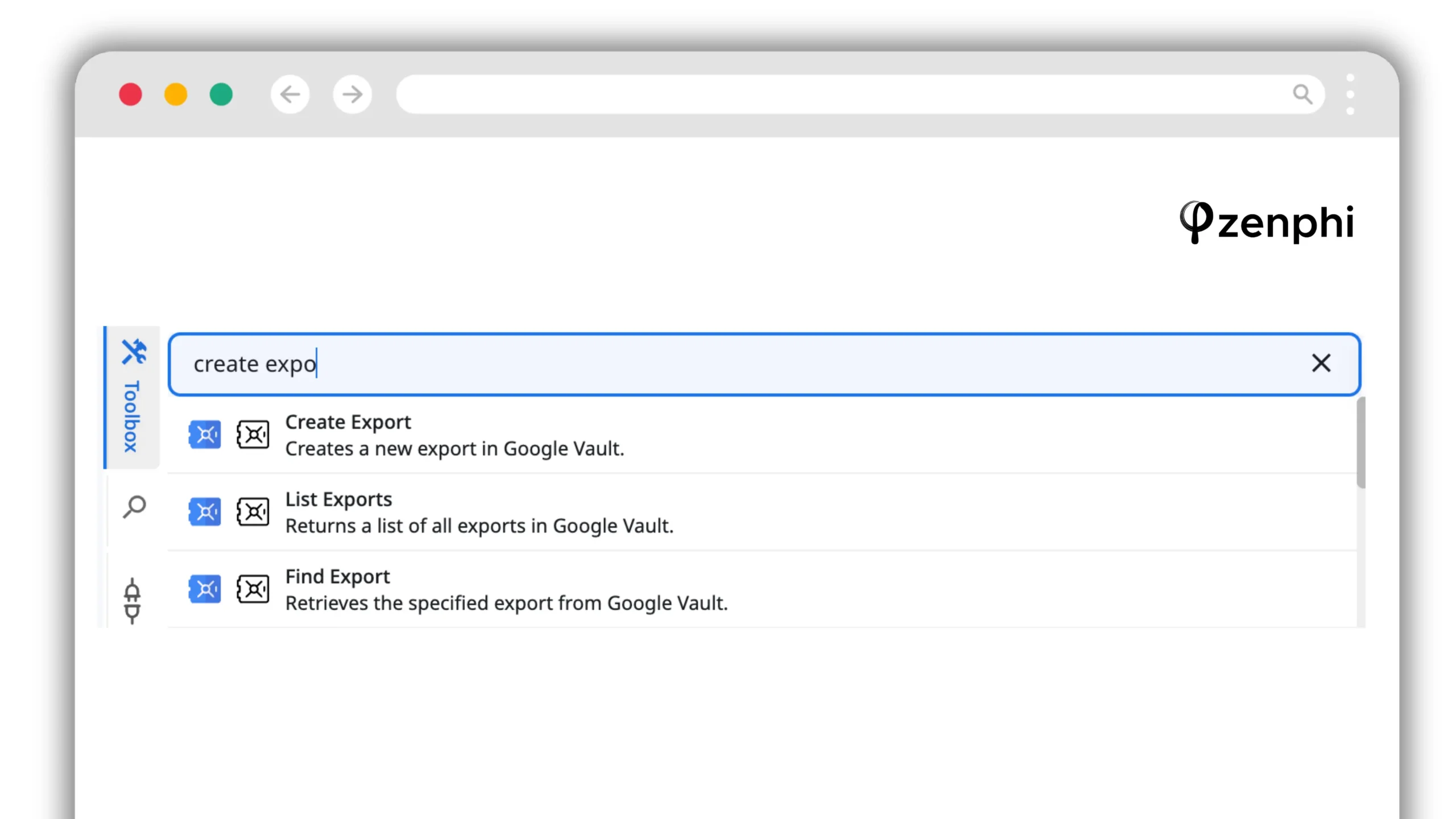
| Action | What it does |
|---|---|
| Create Export | Creates a new export in Google Vault |
| List Exports | Returns a list of all exports in Google Vault |
| Find Export | Retrieves the specified export from Google Vault |
Those three actions cover the API surface an export workflow needs: start the export, find it again, and check where it got to. Everything else in the flow is Zenphi's own logic and storage actions. Here's the complete workflow:
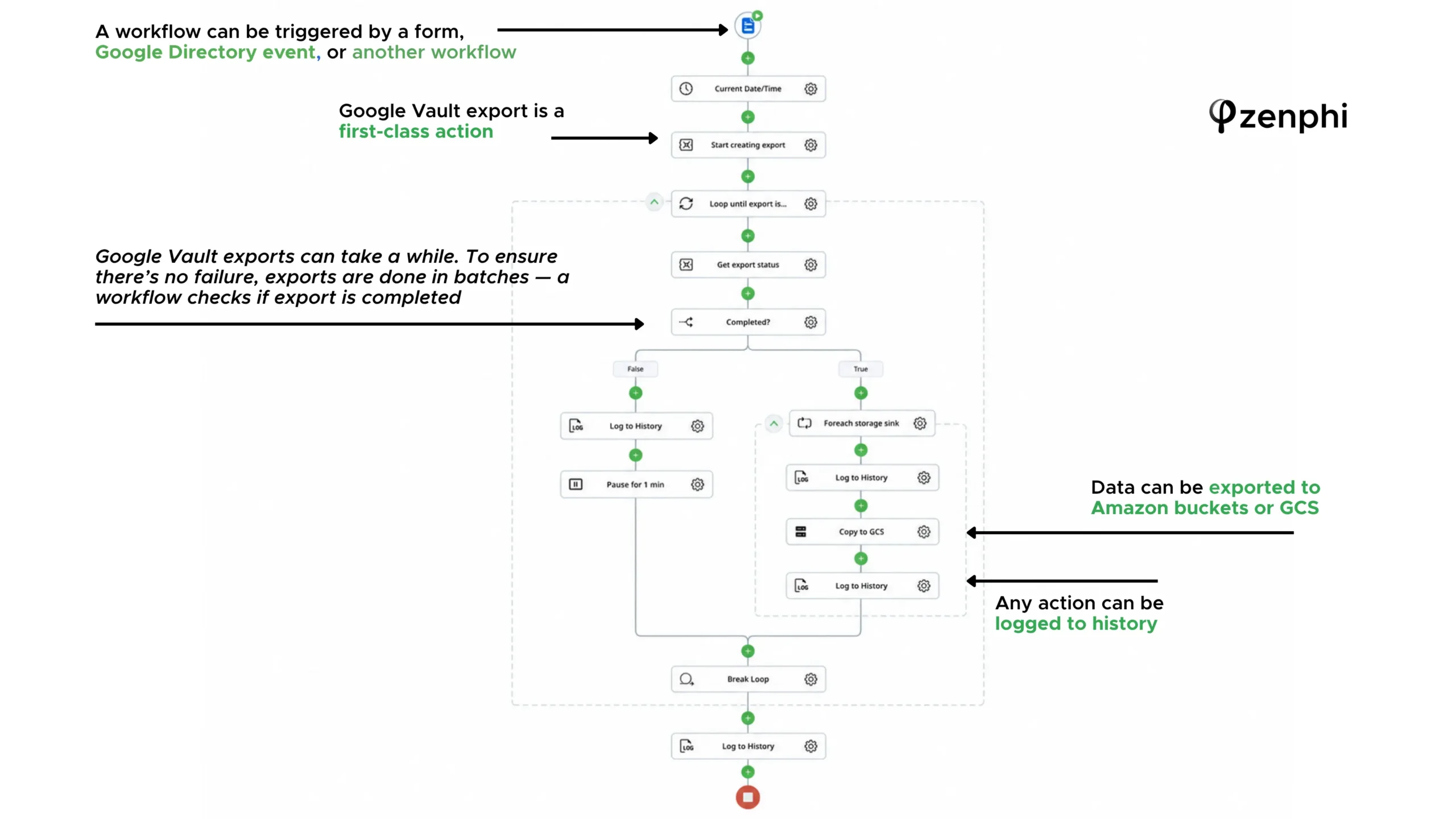
A form submission, a Google Directory event such as a user being suspended, or another workflow calling this one as a sub-process. That last option lets the Vault export slot into a larger offboarding flow.
A single action, with no OAuth handling, no REST plumbing, and no service account setup for the export itself.
The flow gets the export status, checks whether it completed, and if not, logs the attempt, pauses for a minute, and checks again. In Apps Script this is the hand-built part; here it's three actions.
A loop over the export's storage sinks copies the files to Google Cloud Storage or an Amazon S3 bucket. This is the step that beats the 15-day expiry, and the step most manual processes drop.
Each step writes to the workflow's run history, so the audit trail is a by-product of the process instead of something assembled afterward.
The flow breaks out of the loop and writes a final log entry whether the export succeeded or failed.
The flow is also available as a template, so the structure above doesn't have to be built from scratch.
Compared with the scripted version, the capability is the same. The polling, storage handoff, logging, and failure path are already built, and the flow is visible to anyone on the team instead of living in one person's Apps Script project.
Where Vault exports fit in offboarding
A Vault export is rarely a standalone task. In practice it's one step in a sequence that has to happen in a specific order, and getting the order wrong is how data gets lost.
- Suspend the account instead of deleting it. Deletion starts clocks you can't stop.
- Apply a Vault hold if the data must be preserved beyond your retention rules. Do this before anything else touches the account.
- Transfer Drive ownership to the manager or a shared drive, so active work doesn't become inaccessible.
- Run the Vault export for Gmail, Drive, and any other in-scope service.
- Copy the export into your own archive before the 15-day window closes.
- Reclaim the license and delete the account once the export is verified. Deleting a user removes their data from Vault, so if the data needs to stay searchable in Vault, see the alternatives in our guide to Archived User licenses and how to avoid paying for them.
- Record the whole thing: what was exported, by whom, when, and where it now lives.
Steps two, four, and five are the Vault-specific ones. The rest belong to the wider process covered in employee offboarding and data archiving, and license cleanup is covered in our guide to Google Workspace license management.
The ordering is the part worth automating even if nothing else is. A workflow that runs these steps in sequence, waits for each one, and refuses to reach step six until step five has confirmed removes the single most expensive failure mode in offboarding: deleting the account before the export landed.
Where to start
If Vault exports are currently a manual habit, this is the sequence that pays off fastest:
- Confirm who actually has Vault privileges, and whether that list matches who is expected to run exports.
- Write down your retention rules, including which services they cover and what they purge. Automation built on unclear retention policy just fails faster.
- Fix the storage handoff first. Getting exports out of Vault and into your own archive is the highest-value single automation, because it's the step that expires.
- Then automate the export itself, triggered from your offboarding process instead of run standalone.
- Add approval routing if exports touch individual accounts, which they almost always do.
Steps three and four are where the recurring hours go. Everything else is a one-time decision.
Want to see this running against your own Vault setup?
Book a call with an automation expert and we'll walk through your export and retention process together.
Related guides
Google Vault exports: FAQ
How does Google Vault help with data archiving and eDiscovery?
For archiving, Vault's retention rules keep Gmail, Drive, and other covered data available after a user deletes it, for as long as the account exists. Deleting the account removes that data from Vault, so it has to be exported or the account archived first. For eDiscovery, Vault adds holds that override retention, cross-service search, export in formats counsel can ingest, and a log of who searched and exported what. Zenphi automates the operational half of that, creating exports, polling until they complete, and copying the results into your own storage, so the recurring work around Vault runs without anyone driving the interface.
How long does a Google Vault export take?
It depends on volume. A small mailbox can finish in minutes, while a large Drive with years of history can take hours, and Vault stops any export that runs past 24 hours with partial results you can continue. Zenphi's export workflow handles the wait with a polling loop that checks export status on an interval and only continues once Vault reports the job complete.
How long do Vault exports stay available?
Export files are available for 15 days after you start the export, then Vault deletes them. Any process that relies on a person downloading the export manually is one holiday away from starting again, which is why Zenphi's flow copies completed exports straight to a Google Cloud Storage or Amazon S3 bucket as soon as they finish.
Can I export Google Calendar data from Vault?
Yes. Calendar is one of the services Vault supports for retention, holds, search, and export, alongside Gmail, Drive, Chat, Groups, Voice, Meet recordings, Sites, Google Vids, and the Gemini app. Contacts and Keep aren't covered. Zenphi can also automate the Calendar-side steps of an offboarding process, such as handing off a leaver's calendar, through its Google Calendar and Directory actions.
Do I need to be a super admin to run a Vault export?
No, but you do need Vault privileges assigned through an admin role: Manage Searches and Manage Exports to create exports, and Manage Matters to work in a matter. Even super admins can only work with exports they own and exports in matters shared with them. When exports run through Zenphi, the workflow authenticates through a connection to a Vault-privileged identity, so individual admins don't each need the privilege to trigger an export.
Can Vault exports be automated with Apps Script?
Yes, through the Vault REST API, but not through an advanced service, because Vault doesn't have one. You call the API with UrlFetchApp and handle OAuth yourself, typically through a service account with domain-wide delegation. Zenphi exposes the same capability as Create Export, List Exports, and Find Export actions, with authentication handled at the connection level, which removes the OAuth work entirely.
Where do Vault exports go?
Vault holds export files temporarily for download, so moving them into your own storage is a separate step, and it's the step that determines whether you actually have an archive. Zenphi's flow treats storage sinks as a loop, so one export can be copied to Google Cloud Storage, an Amazon S3 bucket, or both.
What is the best way to export large volumes of Vault data?
Scope each search tightly, split by custodian and by service instead of exporting a whole cohort at once, queue exports instead of launching them in parallel, poll for completion, and move each result out immediately. Zenphi handles the queueing, polling, retry, and storage handoff as built-in flow behavior, which is the part that becomes unmanageable by hand past a handful of custodians.
Should exports run automatically during offboarding, or be approved first?
That depends on your policy, but exports touch individual mailboxes, so most organizations want a named approver on record. Vault itself offers multi-party approval, which requires a second Vault admin to approve each export before it starts. Zenphi routes approvals through Gmail or Google Chat as a step inside the same workflow, so the export only starts once someone has signed off, and the approval is logged alongside the export.