An access review is simple to describe and tedious to run: work out who has access, ask the right people whether they still need it, change what they say no to, and keep the proof. This guide walks through that cycle in Google Workspace, shows what Google gives you to start with, and marks the point where automation takes over.
What's in this guide
- What an access review should produce
- Step 1: Decide what is in scope
- Step 2: Pull the current state
- Step 3: Send each decision to someone who can judge it
- Step 4: Set deadlines and decide what silence means
- Step 5: Turn decisions into changes
- Step 6: Keep the evidence
- What a first review tends to turn up
- How often, and what triggers a review
- Plan your review
- When you need more than a Google-centered review
- FAQ
- Sources
Most guides to user access reviews are written for identity governance suites that span dozens of applications. If your risk sits mostly in Google Workspace, the job is smaller and more concrete: groups, shared drives, file permissions, delegated mailboxes, licences and app grants. You can run a review of that scope with a clear process, and you can automate most of it once the process is written down.
What an access review should produce
The review itself is not the goal. The goal is two things you can point to afterwards: access that is smaller and more accurate than before, and a record showing how you got there.
That second part is where many reviews fall short. The usual pattern is an export, a spreadsheet, a round of emails, a chase for replies, manual changes and then a scramble to reconstruct the evidence. The record is built after the fact, which is the weakest moment to build it. A better process produces the record as it runs.
Step 1: Decide what is in scope
Start by listing the kinds of access you will review, because each one has a different person who can say whether it is still needed. Google Workspace has more of them than most review spreadsheets cover.
| Access type | The question to ask |
|---|---|
| Google Groups | Does this person still need to be a member? |
| Shared drives | Does this person still need this role on this drive? |
| Drive file permissions | Should this person still be able to open or edit this? |
| Delegated mailboxes | Is this delegation still needed? |
| Licences | Is this licence still in use and still the right tier? |
| App access (OAuth grants) | Is this app approved and still needed? |
| External users | Does this outside account still have a reason to be here? |
| Admin roles | Does this person still need these privileges? |
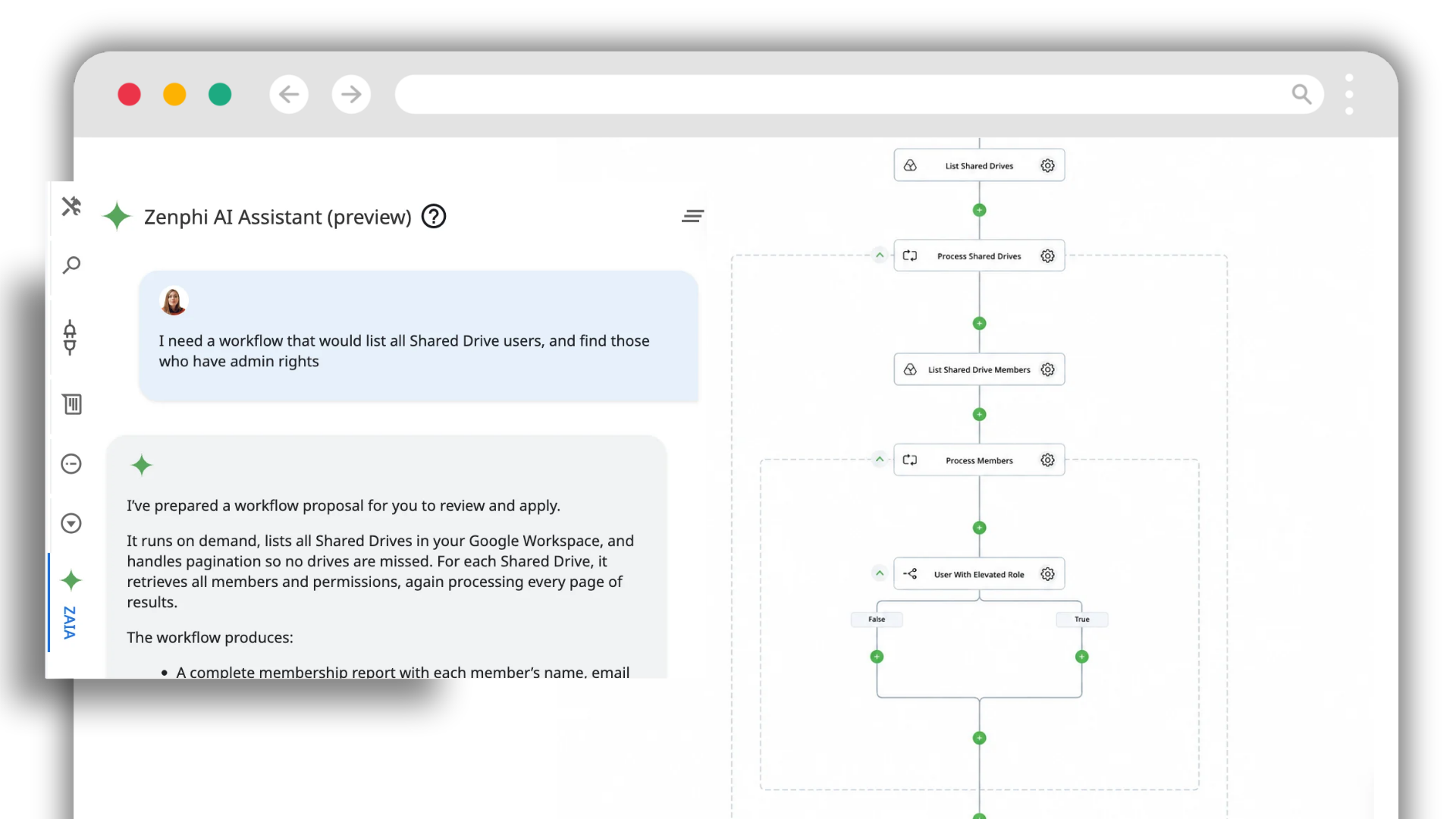
Most of these follow the access areas Zenphi's access review workflow covers, described on its access review page. Admin roles fit here too: there is no single "find admins" button, but a workflow can list who holds which Google Workspace admin privileges, run on a schedule or as part of a monthly review, and flag anyone with elevated rights.
One point on who runs all this, because it is easy to get wrong. In practice, access reviews are owned by IT, as part of security or compliance. File owners, operations leads and directors do not run reviews. What varies is who IT asks to confirm a specific decision, and even that stays inside the review IT runs. So treat the reviewer as IT throughout, and read any "ask the manager" step as IT routing one decision out for confirmation, not handing the review over.
Don't try to review everything the first time. A sensible first pass covers the access that would hurt most if it were wrong: external users, admin roles and sensitive shared drives. Add the rest in later cycles.
Step 2: Pull the current state
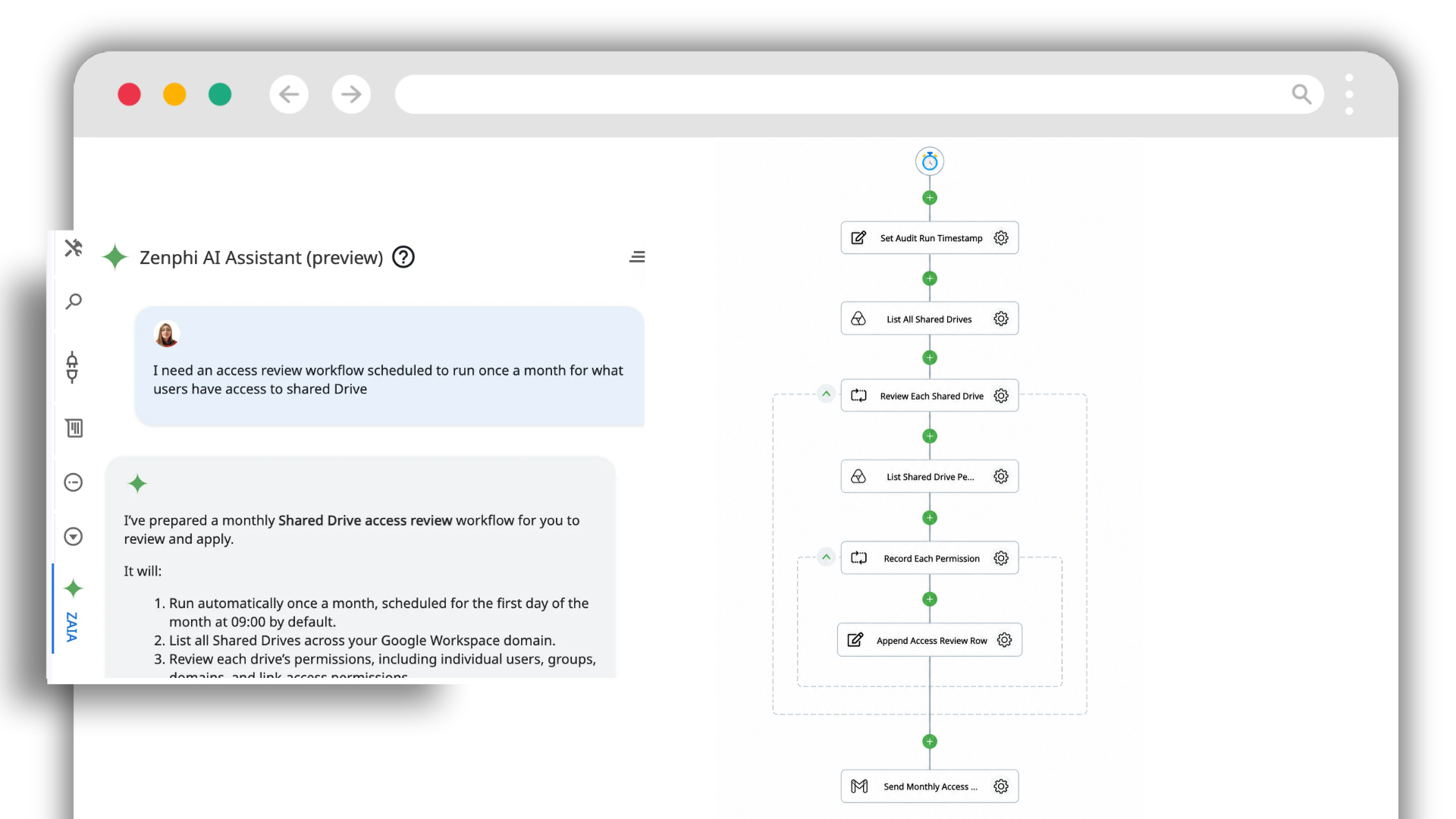
A review needs a snapshot of who has access right now, and this is the step with the most manual effort when you do it by hand.
Google gives you two starting points. In the Admin console, the Drive audit log shows what users do in Drive, from creating and sharing files to downloading and deleting them, and Google added filters for file visibility so you can see whether an item is shared with the whole domain or by link, and whether it was ever shared externally. For anything programmatic, the Directory API lets you manage users, groups and memberships, devices and organizational structure, and audit the apps users have granted access to.
One limit to plan around: an audit log is a record of events, so it tells you what changed, not a standing list of who has access today. That is our reading of how an event log works, and it is why a review usually needs a current-state export taken at the start of the cycle. Whatever you pull, keep a copy of exactly what the reviewers were shown. If someone later asks what a manager approved, "the list as it looked on that date" is the only honest answer.
Step 3: Send each decision to someone who can judge it
IT owns the review, but IT does not always hold the context to judge a single line. Whether an external contractor still needs a particular shared drive is something the drive's owner knows better than the admin running the cycle. So the pattern is not to hand the review to other people, it is for IT to route specific decisions out for confirmation and keep the review itself.
Different access can follow different paths: standard access can be confirmed in one step, external access can follow a stricter route, and a higher-risk resource can require a second sign-off. Add one safeguard: never let the decision on someone's access fall to that same person.
Bring one access review you run by hand and see how the routing, decisions and record can run as a workflow.
Step 4: Set deadlines and decide what silence means
Reviews stall on non-responses, so decide in advance what happens when a reviewer says nothing. There are usually five options: send a reminder, escalate up the management chain, fall back to a second approver, treat silence as a reason to keep the access, or treat it as a reason to remove it.
Pick deliberately, and match the choice to the risk. For a low-risk group membership, a reminder and an escalation may be enough. For external access to a shared drive, many teams decide that no response by the deadline means the access is removed, because leaving outside access in place by default defeats the purpose of reviewing it. Your policy and your auditor should settle this, not the tool's default.
Step 5: Turn decisions into changes
A decision that doesn't change anything is just an opinion. Each answer should map to an action: keep the access, remove it, lower the permission level, transfer ownership of a file, or escalate an exception.
Two habits make this safer. First, re-check current access immediately before making a change, because access may have moved since the snapshot. Second, record the change alongside the decision, so the record shows not just that someone said "revoke", but that the revocation happened and when.
Step 6: Keep the evidence
The record should answer three questions without anyone having to remember anything.
- What was reviewed? The user, the resource, the type of access, the permission or role, and the state shown to the reviewer at that time.
- Who decided? The reviewer's identity, the decision, any comment and a timestamp.
- What happened next? The change that was made, when, and the final result, ideally collected into one report.
A final report generated at the end of the cycle is much easier to hand to an auditor than a folder of emails. An auditor will typically want to know when someone was granted access to something, who decided to remove access and on what grounds.
Here is the honest limit, and it matters. A workflow platform can log all of this, but it does not do so by default beyond recording that a flow ran. What to capture for audit, and how long to keep it, is set by your compliance policy, not by the tool. The implication cuts both ways: if you already have a policy, automation can enforce it exactly, every cycle. If you don't have one yet, a workflow tool won't invent best practice for you or hand you a ready-made compliant review out of the box. Decide the policy first, then automate it.
See how Zenphi captures the access state, the decision and the remediation as the review runs.
What a first review tends to turn up
Teams rarely publicise what their first access review finds, for an obvious reason: nobody announces that a stack of former employees still had access to company data. But the scale of the problem is well documented. In a Beyond Identity survey, 91% of employees said they still had access to company files after leaving, and only 29% of companies said they revoked access to email servers during offboarding. A first review is usually where that backlog surfaces.
There is also one trap worth knowing before you start, because it fools people into thinking a review worked when it didn't. You can remove someone from a shared drive and they can still open a file, because the file was shared with them directly through a link, separately from the drive membership. The fix is structural: share access through a Group rather than to individuals, so that removing someone from the Group removes their access to everything shared with it. A review that only checks drive membership, and not link and individual shares, will keep missing this.
How often, and what triggers a review
There is no single correct frequency. Many teams review on a schedule, such as quarterly or twice a year, and the right cadence depends on your policy, your risk and what your auditor asks for. Different resources can reasonably be reviewed at different intervals: external access and admin roles more often than ordinary group membership.
A schedule is not the only trigger. A review can also start from an event, such as an employee leaving, which is the case where leftover access matters most. Reviewing remaining access during offboarding, removing it and transferring file ownership is the same process run for one person instead of a whole population.
Plan your review
Pick the access types you want to review. The tool shows how many separate review streams you would be running and which to prioritise, so you can see the size of the job before you start. IT owns every stream; the notes show where IT routes a decision out for confirmation.
The same planning guide, written out:
| If you review… | IT routes confirmation to | Stricter option |
|---|---|---|
| Google Groups | Group owner | Add the manager for sensitive groups |
| Shared drives | Drive owner or manager | Require Security as well for sensitive drives |
| Drive file permissions | Resource owner or manager | Review externally shared files first |
| Delegated mailboxes | Mailbox owner or manager | Remove delegation when no response comes |
| Licences | IT with the manager | Reclaim unused licences automatically |
| App access (OAuth grants) | Security or IT | Check against an approved-app list |
| External users | Resource owner | Remove access if the deadline passes |
| Admin roles | Security | Require a second approver |
Walk us through your Google Workspace setup and we'll help you scope a first review.
When you need more than a Google-centered review
This process fits when your access risk is mostly inside Google Workspace. It stops fitting when you need one entitlement-governance layer across the whole enterprise: entitlement catalogues, role mining, segregation-of-duties analysis, identity risk scoring or deep governance across dozens of applications. Zenphi's own access review page says that in those cases dedicated platforms such as SailPoint or Saviynt are the more appropriate category, and we agree.
Customer examples show how this looks in practice, and the closest one is Emerson College. Its IT team already used GAM heavily but still launched checks and followed up by hand, so it automated recurring audits of Drive files and folders shared externally or across the whole domain, plus a check that identifies who accessed files owned by suspended users in the previous 60 days and notifies them. The case reports about 40 to 50 hours saved annually per workflow, and says building it was estimated to be eight times faster than scripting it from scratch. It is a recurring sharing audit rather than a formal access review, but it follows the same pattern as steps 2 and 5: pull the current state, act on the exceptions and notify people without anyone relaunching a script.
Two more examples are adjacent in the same way. Gordon Food Service uses Zenphi workflows to cross-check Chrome extension and OAuth requests against its approved-app database and to monitor external forwarding and public calendar sharing. A hospitality company's offboarding workflows revoke access, remove external shares and sign departing users out of their devices. All three are customer-reported, in our Emerson College, Gordon Food Service and offboarding case studies.
FAQ
How can I automate user access reviews effectively?
Write the process down first: the scope, who reviews each type of access, the deadline and what happens on silence. Then automate the parts that stall by hand: pulling the current access state, routing each decision to the right owner, sending reminders and escalations, applying the decision as a change, and generating the record. In Google Workspace, a workflow platform with native admin actions can run that whole cycle without code.
How often should we run a user access review?
It depends on your policy, your risk and what your auditor requires. Many teams review on a schedule and also trigger a review from events such as an employee leaving. Higher-risk access, such as external users and admin roles, is often reviewed more often than ordinary group membership.
Who should run access reviews?
IT owns access reviews, as part of security or compliance. File owners, operations leads and directors don't run them. Where IT lacks the context to judge a specific item, such as whether an external contractor still needs a drive, it routes that one decision to the person who knows and keeps the review itself. Never let the decision on someone's access fall to that same person.
What evidence should an access review keep?
What was reviewed and the state the reviewer saw, who decided and when, any comment, and what change followed. Meeting a specific framework remains the organization's responsibility, so confirm with your auditor what they expect.
Can I run an access review in Google Workspace without an identity governance suite?
Yes, if your risk is mostly inside Google Workspace. You can combine Google's reports and Directory API with a workflow that routes decisions and records outcomes. A dedicated governance suite becomes the better fit when you need entitlement catalogues, role mining or governance across many applications.
Sources
- Zenphi — User access review management for Google Workspace
- Google Workspace Updates — Viewing changes to the visibility of Drive files
- Google for Developers — Directory API (Admin SDK)
- Zenphi — Emerson College case study
- Zenphi — Gordon Food Service case study
- Zenphi — High-turnover offboarding case study
Pages were checked on October 14, 2026 and can change. We did not test third-party tools. The Zenphi pages and case studies are our own, so read their claims with that in mind, and the reviewer suggestions in this guide are our recommendations, not requirements.
Related reading
Automate user access reviews
How the review workflow runs on Google Workspace.
Read more →User access review software compared
Tools for access reviews, from governance suites to focused options.
Read more →Drive and shared drive permissions
How to manage, audit and automate Drive access.
Read more →Employee offboarding and data archiving
Remove access and keep the data, with a record.
Read more →Bring one review you run by hand and see it mapped to a workflow.
Start with the one that takes your team the longest each cycle.